
Store and organize
WebDAV access
See your TransferSize files where you see everything else on your computer. Connect once and your folders show up like a network drive.
- Premium and Family
- Read-only
- Up to 10 app passwords
What WebDAV is
WebDAV is a long-standing, widely supported way for apps to open files kept on a server. You don’t need to know how it works. What matters is that Finder on a Mac, File Explorer on Windows, and tools like Cyberduck and rclone all speak it.
Connect one of them to TransferSize and your My Files folders appear next to your own. Open a folder, drag a file to your desktop, and it downloads. No browser tab, no hunting for the right page.
Built into your computer
Mac and Windows connect without extra software.
A password per device
Each connection has its own password you can revoke.
Read-only
Browse and download. Nothing can be changed or deleted.
Resumable downloads
Big downloads can pick up where they stopped.
How it works
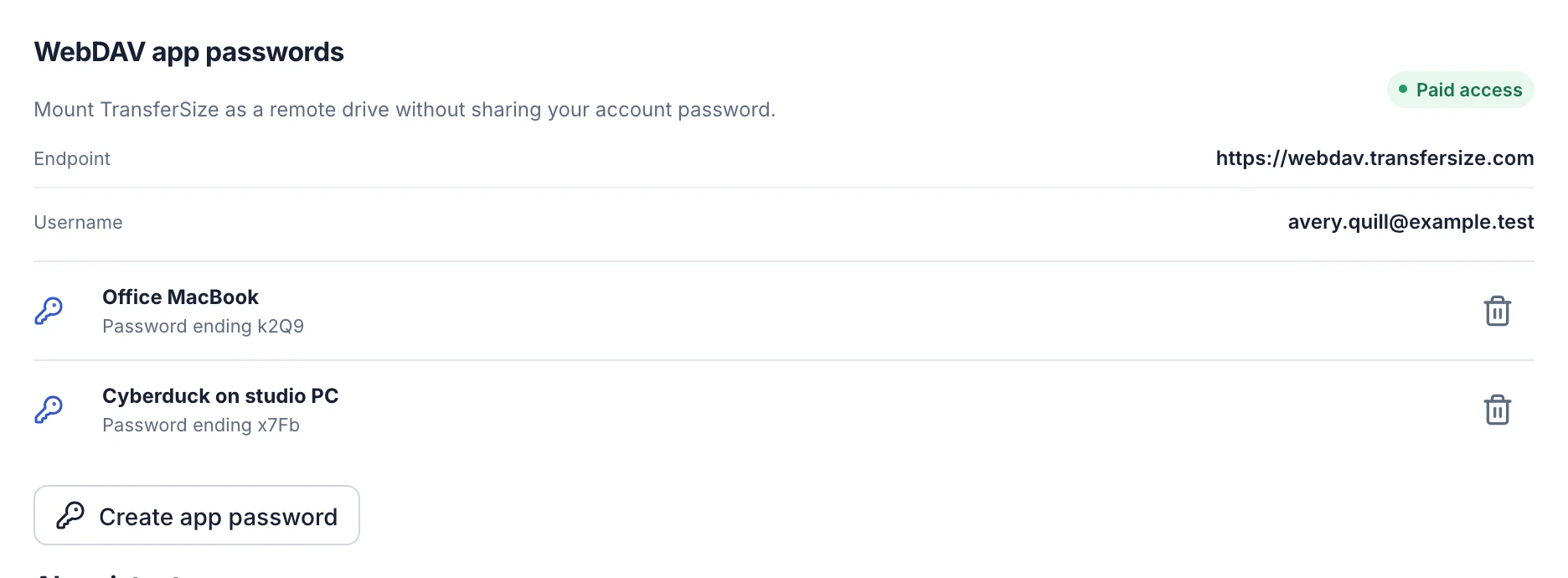
TransferSize runs a WebDAV server at https://webdav.transfersize.com. Your app signs in with your email address and an app password: a long, random password made for that one app.
App passwords keep your real password out of your apps. If a laptop goes missing or you stop using a tool, revoke its password and only that connection stops. Everything else carries on.
- What you’ll see. Your My Files folders, your transfers, and items people have shared with you that you’ve accepted, all under their real names. A single-file transfer shows up as that file.
- What you won’t. Anything in Trash, transfers that have expired, and files the owner has hidden from people they share with.
- Always checked. Every request checks your plan and your verified email, so access ends the moment a plan does.
Set it up
- In your workspace, open Account → Security.
- Under WebDAV app passwords, select Create app password.
- Name it after the device, like “Office MacBook”, and select Create password.
- Copy the password. It’s shown only once.
- In your app, connect to the server with your email and that password.
What people use it for
- Setting up a new computer. Drag a whole project folder down instead of downloading files one at a time.
- Extra backups. Point rclone at TransferSize to copy your files to a local disk or another cloud.
- Working in desktop apps. Browse to a file in Finder or File Explorer and copy it where your editing app can open it.
What it doesn’t do
- Upload, rename or delete. The connection is read-only. Manage files in your workspace, and the changes show up in your app.
- Keep a synced copy. It shows what’s in your account when you look. It doesn’t keep files on your computer.
- Work on Free. WebDAV needs Premium or Family and a verified email address.
Which plans have it
- Premium and Family.
- Up to 10 active app passwords per account.
Questions
Sign-in fails
Use your email address as the username and an app password, not your account password.
I lost an app password
It can’t be shown again. Revoke it and create a new one.
Why can’t I copy files into the folder?
WebDAV is read-only for now. Upload in your workspace instead.
Updated October 9, 2026