Send and share
Link controls
A link is a key to your files. These controls decide who can use it, for how long and how many times.
- Password on every plan
- Download limits on paid plans
- Set before you upload
What link controls are
Every transfer gives you a link. Out of the box, anyone who has that link can open it, preview the files and download them. For most sends that’s exactly right: quick, with nothing to explain.
Some files need more care. A contract should reach one person. A client preview shouldn’t hang around for months. A big video shouldn’t be downloaded by everyone it gets forwarded to. Link controls let you set those rules before the upload starts, in the row of buttons under your message.
Password
Nobody sees the files, or even their names, without it.
Expiry
The link stops working on the day you choose.
Download limit
The link closes after a set number of downloads.
Alerts
An email when someone downloads, or when nobody has.
Passwords
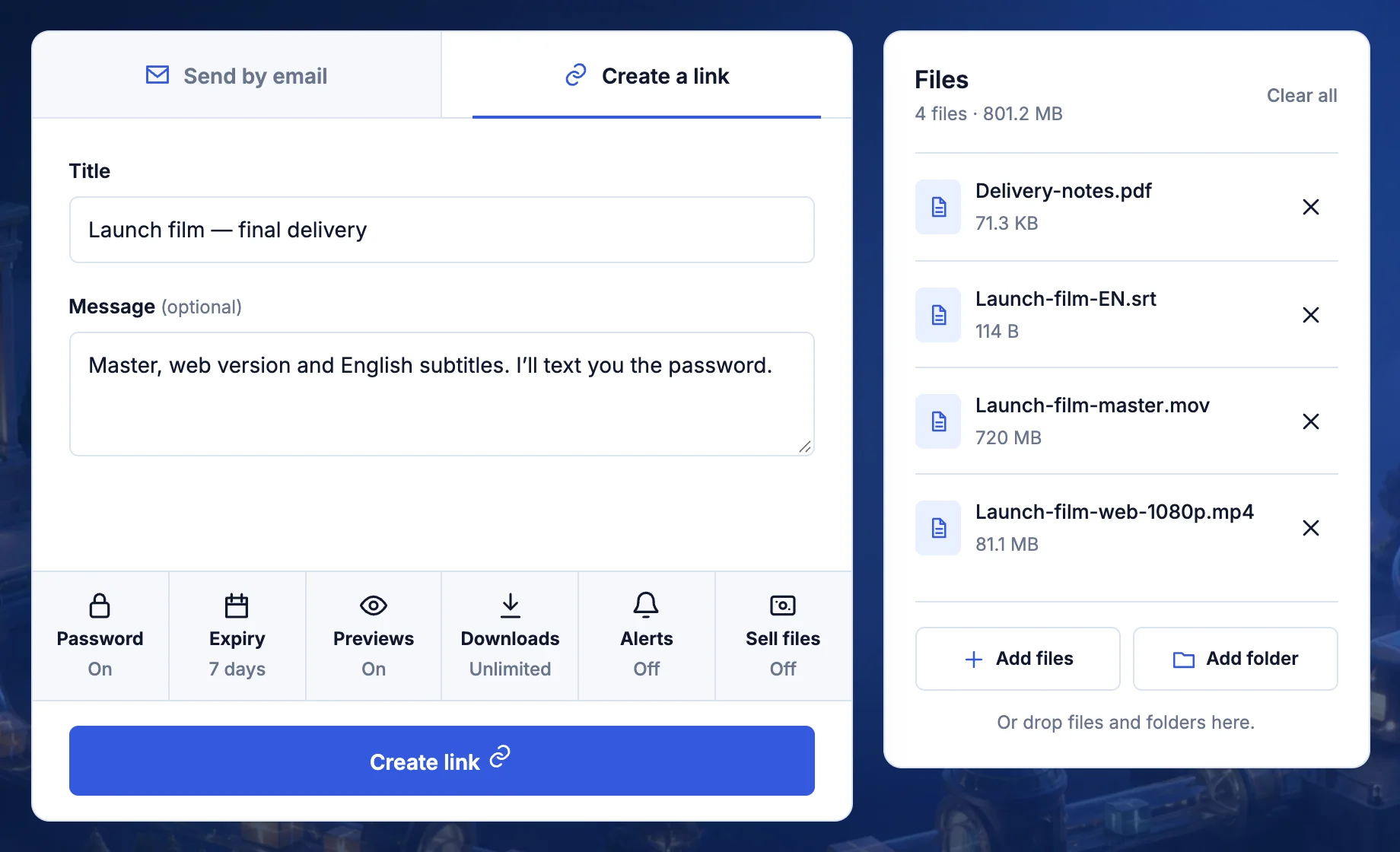
Select Password, type a password of up to 100 characters and select Save. Your link now opens to a page that says Unlock this transfer and nothing else. The title, file names and sizes stay hidden until the right password goes in. A wrong one gets Incorrect password. Please try again.
We never keep your password the way you typed it. It’s run through a one-way scrambler 600,000 times (PBKDF2, for the curious) and only the result is stored. That’s enough to check a password someone enters, but it can’t be turned back into the password. When you’re signed in, your own transfers open without it.
Expiry dates
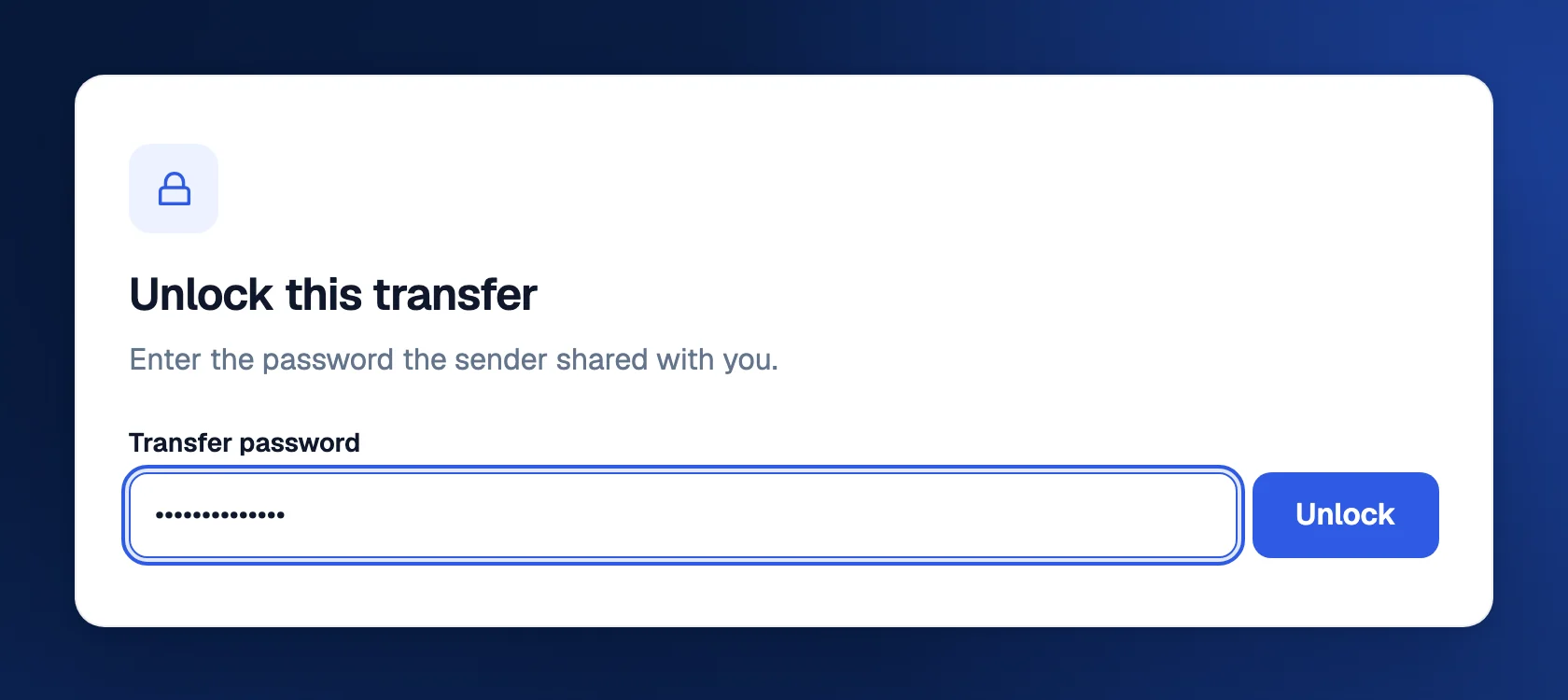
Every transfer has an end date. It’s 7 days unless you change it. Select Expiry to choose 1 day, 7 days, 30 days, 6 months or 1 year. Free accounts can pick 1 or 7 days; Premium and Family unlock the rest.
When the date arrives, the link stops working and anyone who opens it is told the transfer has expired. Shortly after, the files are deleted from storage for good. They don’t go to Trash. That’s by design: transfers are for delivering files, and they clean up after themselves.
Download limits
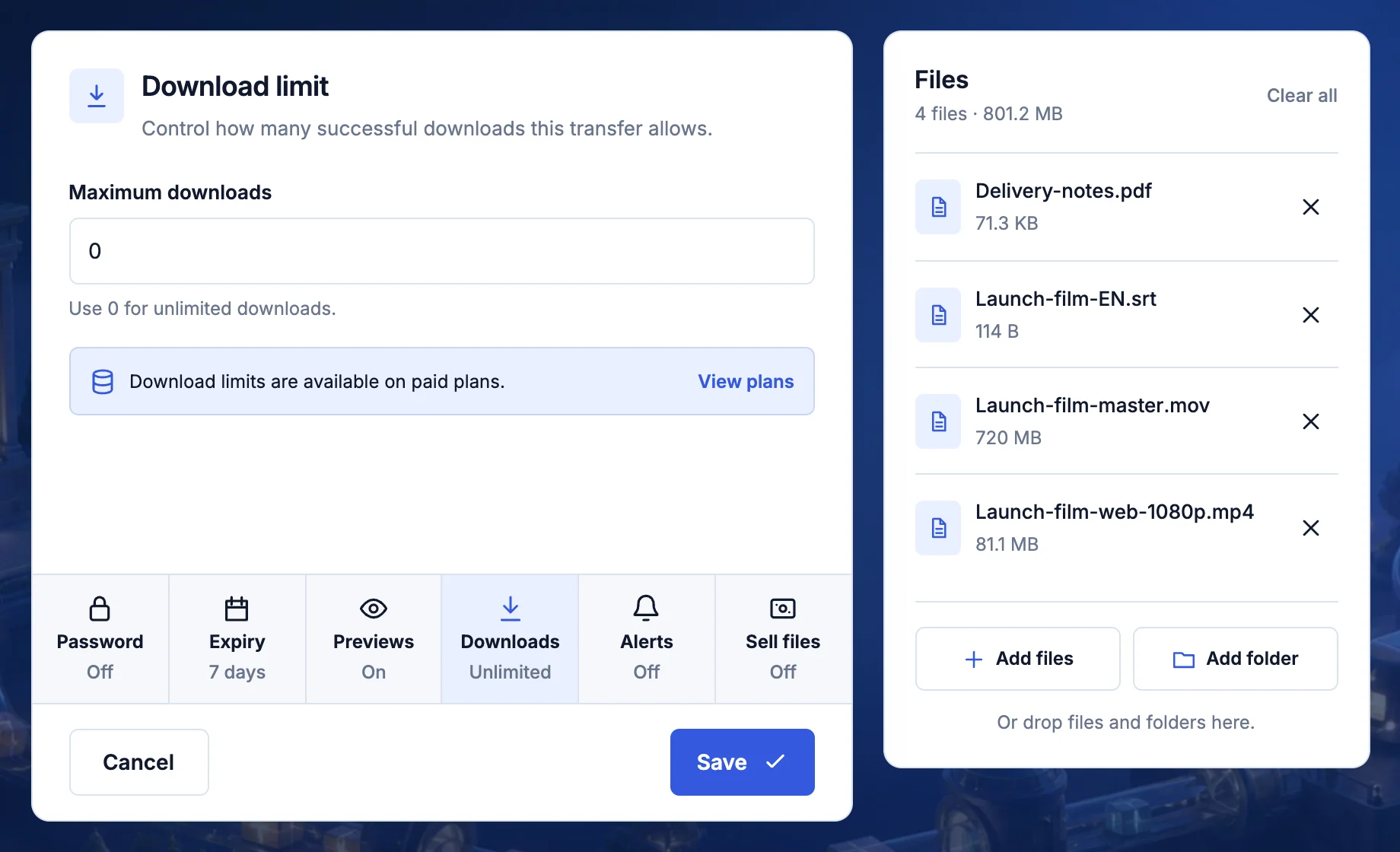
Select Downloads and enter a number: 1 for a one-off delivery, 5 for a small team, or 0 for unlimited. When the limit is reached, the link closes for everyone and says its download limit was reached.
A download counts the moment it starts. One file counts as one, and so does everything as a zip. If a download can’t start on our side, it isn’t counted, and continuing a paused download doesn’t count twice.
Alerts
Select Alerts to choose what TransferSize emails you about. Switch on any of these:
- When files are downloaded. One email the first time someone starts downloading, so you know it arrived.
- If files are not downloaded. An email when the transfer expires and nobody downloaded it. Time to follow up.
- Before it expires. A reminder about 2 days before the link runs out.
Alerts work on every plan, including Free. You just need to be signed in so we know where to send them.
Good combinations
- A signed contract. Password, 7 days, a limit of 1 and previews off. It reaches one person, once.
- A rough cut for a client. Password with previews on. They watch in the browser before downloading anything.
- Photos for a group. No password, 30 days, and the not downloaded alert to catch anyone who forgot.
- A handover a client may need later. A 1-year link with a password, on Premium or Family.
What it doesn’t do
- A password isn’t encryption. It decides who can open the link. Files travel over HTTPS, but they aren’t end-to-end encrypted.
- It can’t take back a download. Once someone has saved a file, expiry and limits don’t touch their copy.
- Nobody can look up a lost password. Only the scrambled version is stored. Send the files again with a new one.
Which plans have it
| Control | Free | Premium and Family |
|---|---|---|
| Password | Yes | Yes |
| Expiry | 1 or 7 days | Up to 1 year |
| Download limit | No | Yes |
| Alerts | Yes, when signed in | Yes |
Questions
Do my recipients need an account?
No. They open the link in any browser, on a phone or a computer. They only need the password if you set one.
Can I send by email and still use these controls?
Yes. Choose Send by email, add up to 3 recipients on Free or 10 on a paid plan, and set the controls as usual. The email includes the link and its expiry date, never the password.
Can someone open my link on their phone?
Yes. And if they found it on a computer, Open on another device on the download page shows a QR code to scan.
Updated September 26, 2026