
Send and share
File previews
Your recipients can look before they download: flick through the photos, watch the cut, read the contract, check what’s inside the zip. Right in the browser, with nothing to install.
- On by default
- Every plan
- Original quality
What previews are
Without previews, a download link is a mystery box. Your client downloads a 4 GB file just to check it’s the right version, then hunts for an app that opens it. On a phone, that might not work at all.
With previews, every file that can be shown gets an eye button on the download page. One tap opens it on the spot: no app, no waiting for the whole file, no account. The same viewer runs in your own workspace, so a file looks the same to you and to the people you send it to.
Photos
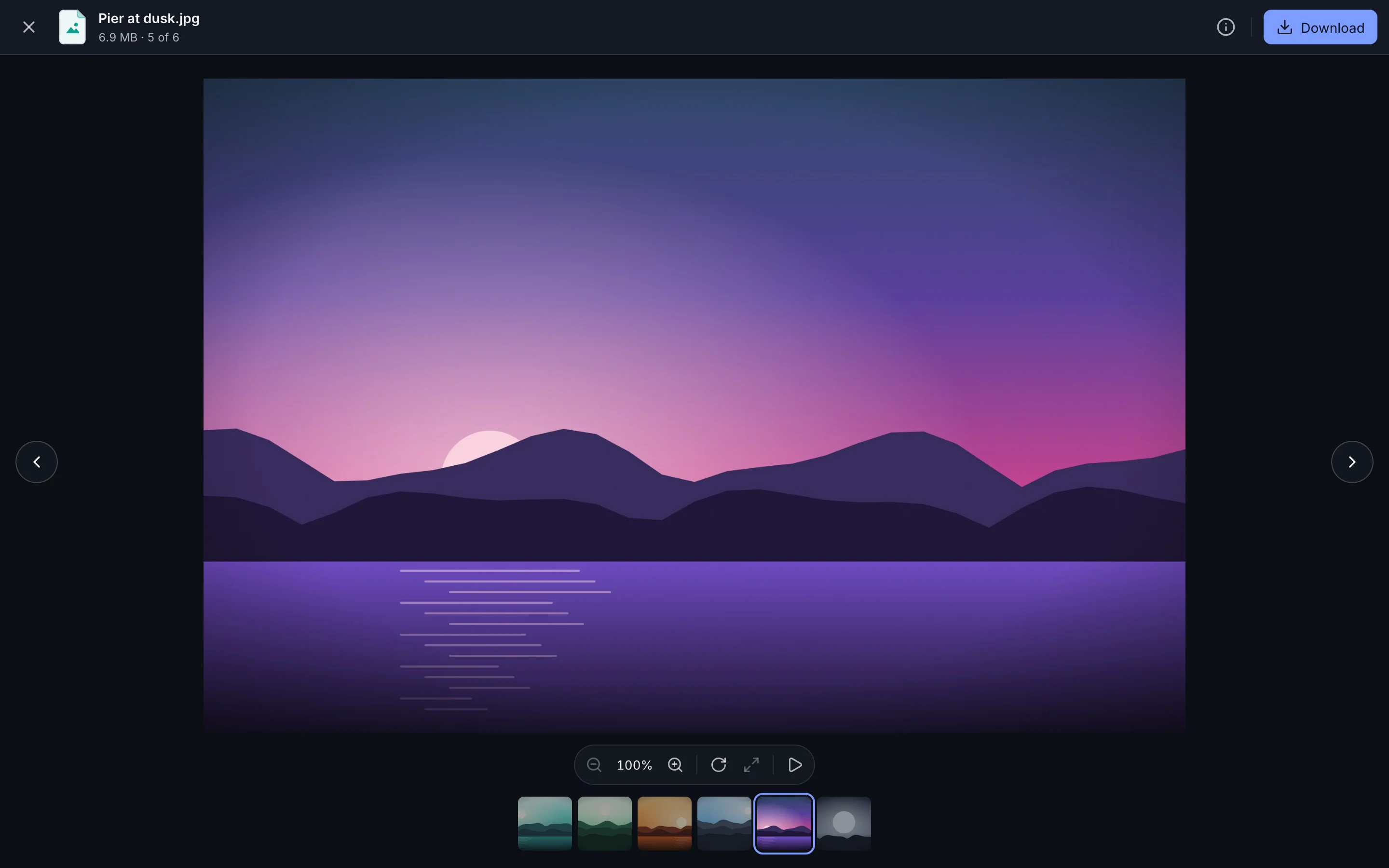
JPEG, PNG, WebP, AVIF, GIF, HEIC and TIFF at full size, with a strip of the others.
Video
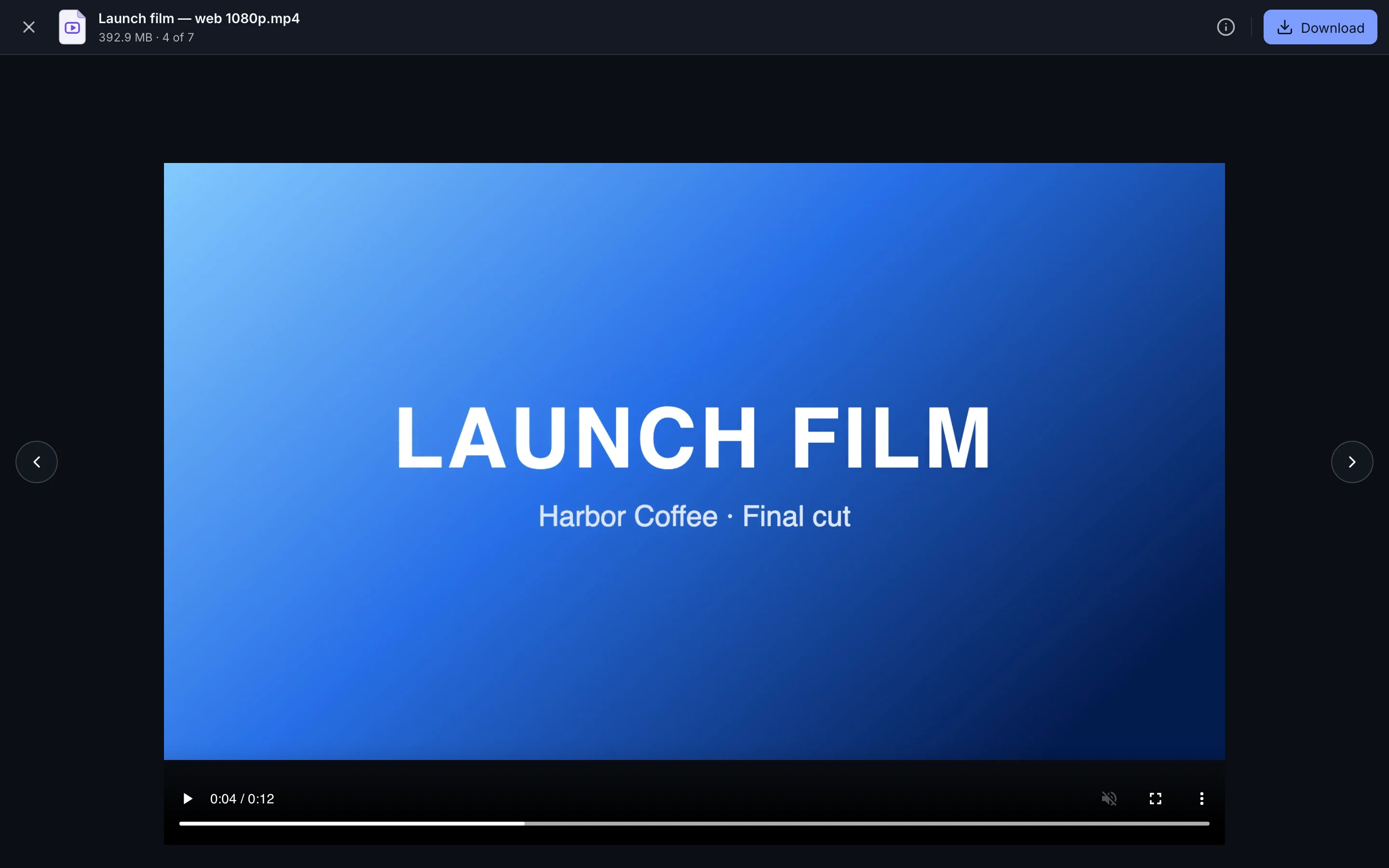
MP4, MOV, M4V and WebM in a proper player, straight from the original.
Audio
MP3, WAV, FLAC, AAC, M4A, OGG and Opus, with the album art beside it.
Documents
PDF, Word, Excel and PowerPoint, as pages, sheets and slides.
Text and code
Markdown comes out formatted and code comes out highlighted.
Zip files
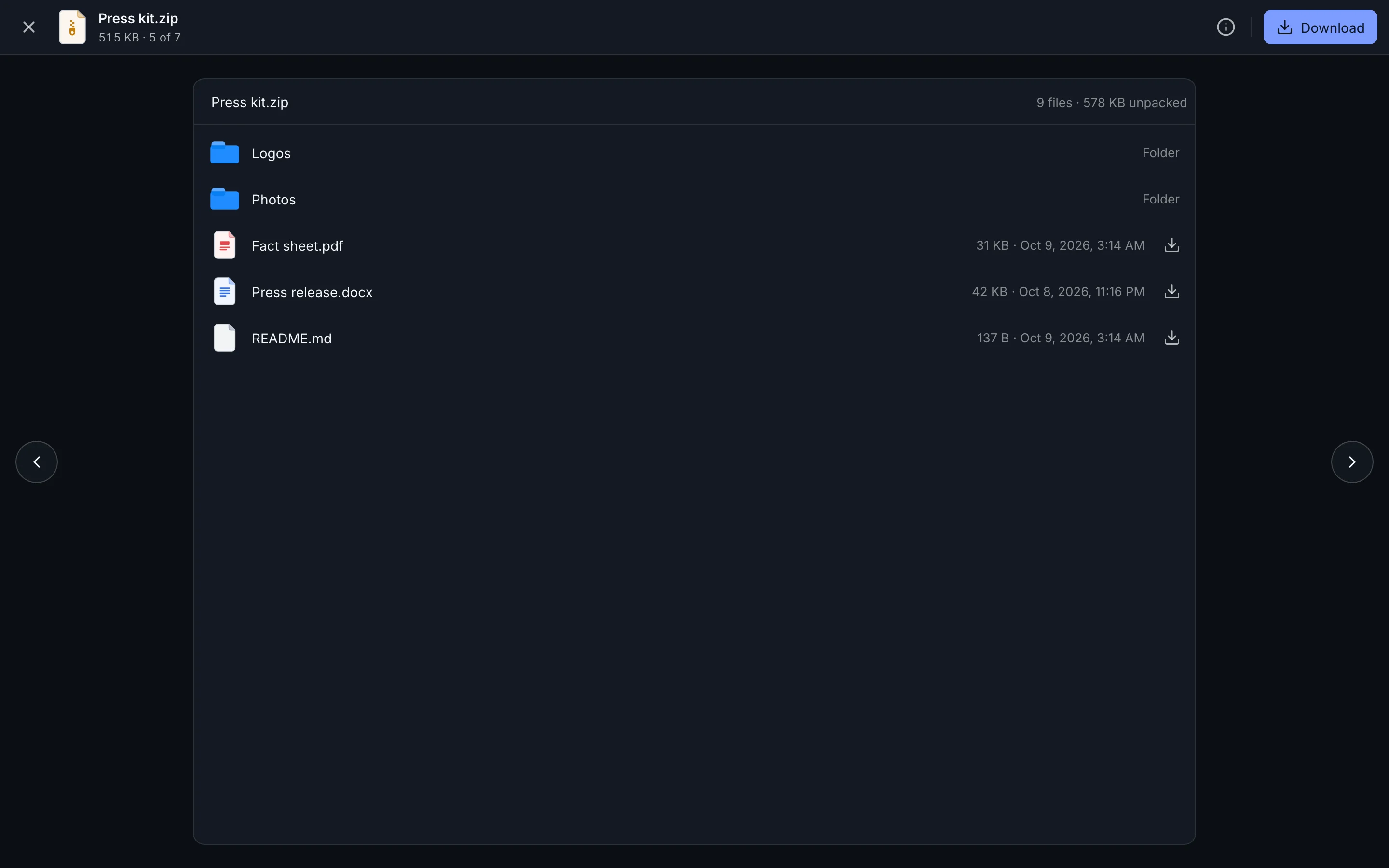
See what’s inside a zip and open one file without downloading the rest.
How it works
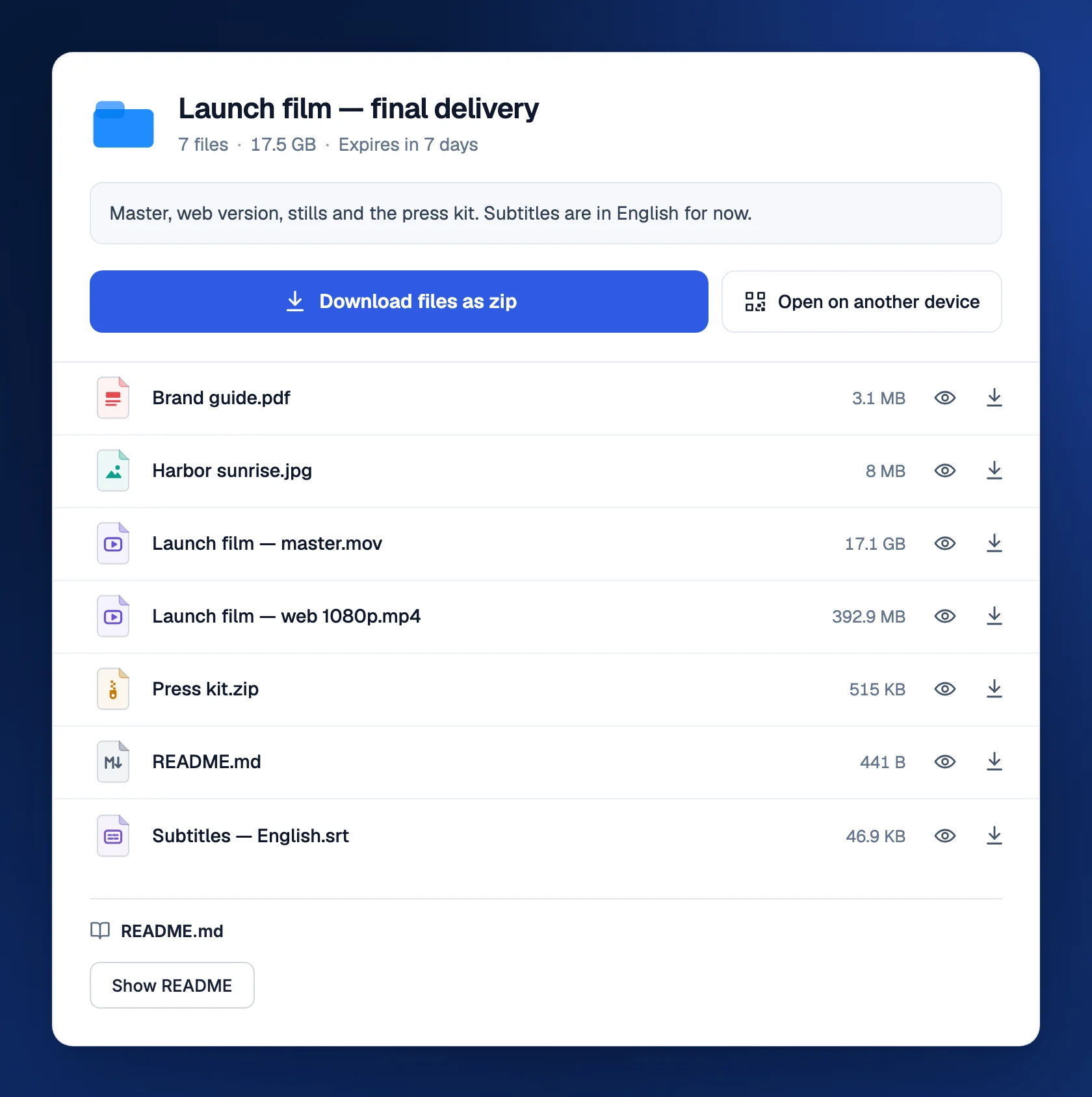
On the download page, each file has an eye to preview it and an arrow to download it. The preview opens over the page, with arrows to step through the other files and a download button for when they’ve seen enough. A single-file transfer gets a Preview button right next to Download file.
Here’s the part we love. Video isn’t squashed into a smaller, blurrier copy for the preview. The player streams your original file, so what your client watches is exactly what they’d download, and they can skip to any moment without waiting for the rest.
- Photos open at full resolution. A filmstrip along the bottom shows the other photos in the folder, and the info panel lists the camera, lens and settings.
- Video and audio play with seeking, volume and full screen. A track shows its cover art, and its lyrics scroll along when an .lrc file sits next to it.
- PDFs render page by page, with zoom and search.
- Word, Excel and PowerPoint become readable pages, sheets and slides. Layout can be simpler than in Office.
- Markdown, text and code show formatted or highlighted, with line numbers for code.
- Zip files list every folder and file inside. Open one to preview it, or download just that file. App packages like .apk and .ipa open the same way.
A README that reads itself
Put a README.md at the top of a transfer and it gets its own place under the file list. One click on Show README shows it formatted, with tables, links and code. It’s the easiest way to say what’s in the box: which file is the master, what the license says, where to start. In your own workspace, a folder’s README shows straight away.
Always the original file
Previews never change what gets delivered. When your recipient downloads, they get the exact file you uploaded: same resolution, same bitrate, same metadata. TransferSize doesn’t compress, resize or re-encode anything.
Sending several files or a folder? Download files as zip bundles everything into one download, built on the fly. The zip isn’t compressed, so it’s about the size of your files and starts right away.
Turning previews off
Previews are on for every new transfer. To switch them off, select Previews in the uploader and turn off Allow secure previews. Recipients then get download buttons only. You can still preview your own files while you’re signed in.
In My Files too
Open any file in My Files and the same viewer appears, with the same formats. One extra: videos browsers can’t play, such as MKV and AVI, get a playable copy made just for your preview.
What it doesn’t do
- Play every video on a link. Playback depends on the browser and the format. MKV and AVI need downloading on a link. The download is never affected.
- Open 7z, RAR or TAR archives. A zip can be read a piece at a time; those formats can’t, so they download instead.
- Show all of a huge file. Office files preview up to 50 MB, spreadsheets show their first 1,000 rows, and text shows its first 2 MB.
- Make a lighter copy. Previews stream the original, so watching a large video uses as much data as downloading it.
Which plans have it
- Every plan, including Free.
- On for every new transfer, and you can switch it off for any one of them.
- Works in phone, tablet and computer browsers.
Questions
The video preview won’t play
The video uses a format that browser can’t play. Download it and open it in a video player: the file itself is fine.
Why won’t an Office file preview?
Previews work for .docx, .xlsx and .pptx files up to 50 MB. Older .doc, .xls and .ppt files need to be downloaded.
Can people see inside a zip without downloading it?
Yes. Select the eye next to the zip to see everything in it, then open or download single files. Only the parts they open are transferred.
Updated October 9, 2026