
Send and share
Receive links
Turn “can you send it over?” into one link. Anyone can upload to it, and the files land in the folder you picked.
- Premium and Family
- No account for uploaders
- Up to 1,000 files per upload
What a receive link is
Sending files is only half the job. Sooner or later you need files from other people: a client’s logos, a band’s stems, a guest’s interview recording. Usually that means chasing attachments that are too big, or asking people to sign up for something first.
A receive link flips it around. You create a file request, share its link, and people upload to you from their browser. They don’t need an account, they can’t see anything in your workspace, and everything lands in one folder.
Reusable
One link takes upload after upload, from as many people as you like.
Sorted
Uploads go straight into the folder you choose, labelled with the sender.
Private
Uploaders see your title and message, never your files.
Notified
Get an email each time someone finishes an upload.
How it works
Here’s what happens, on your side and theirs.
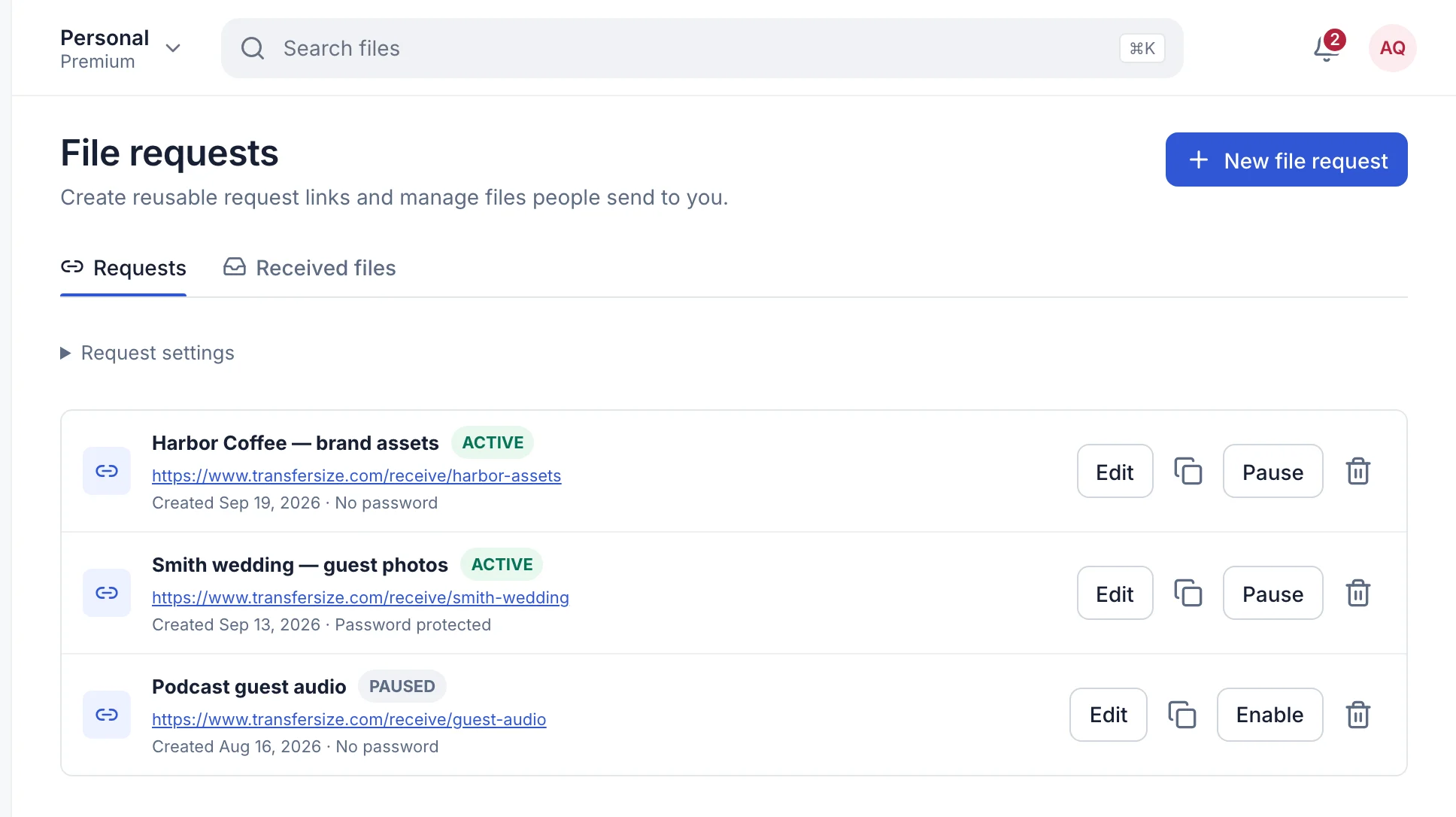
- You create the request. Give it a title like “Harbor Coffee brand assets”, choose the folder files go to, and add a message saying what to send.
- You share one link. Pick a custom address like
transfersize.com/receive/harbor-assets, or use the random one. Put it in an email, a chat or on your website. - They upload. The page shows your title and message, asks for their name, and lets them add files or a whole folder. A quick bot check, then Send files.
- The files arrive. Every part is checked on the way in. When it’s done, the files are in your folder and you get an email.
Settings you can use
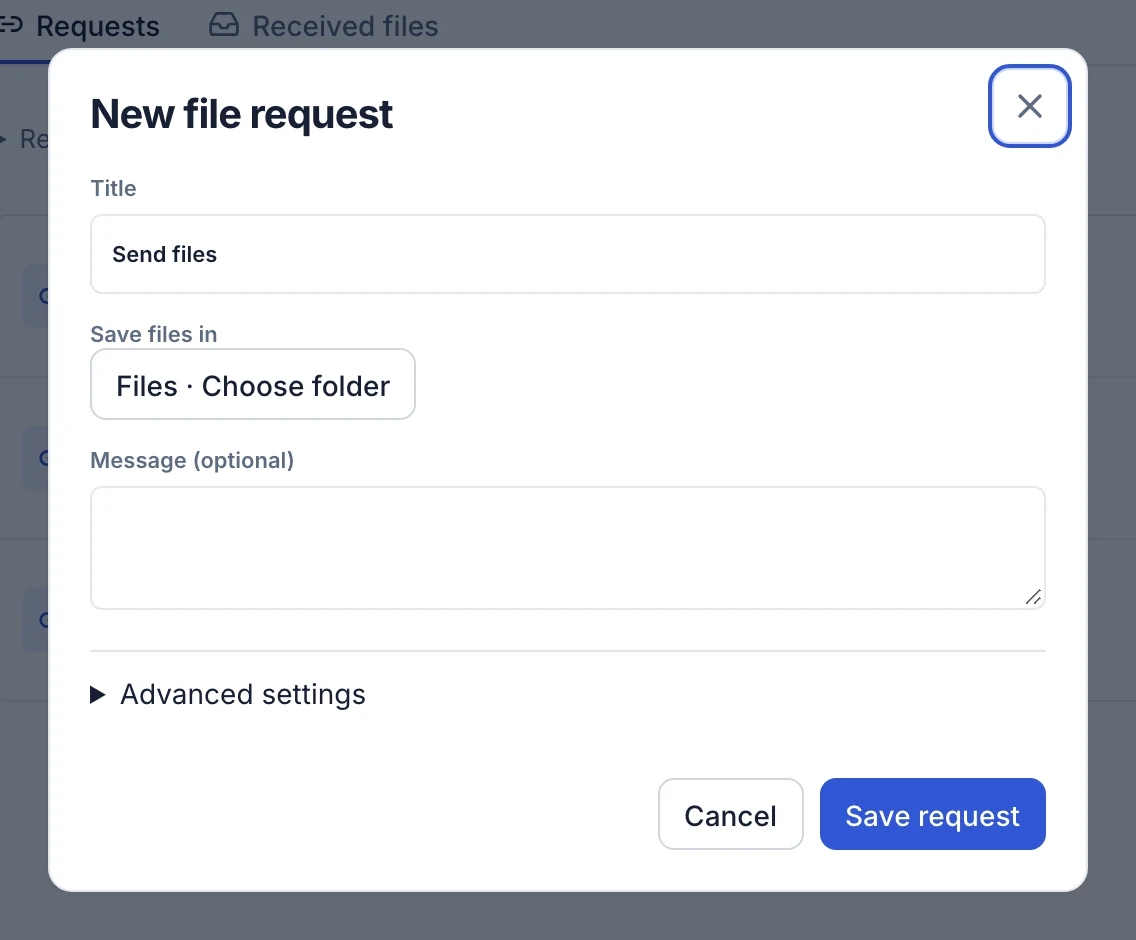
Open Advanced settings on a request to shape who can upload and what you ask for.
- Custom URL. A short, readable address of 3 to 48 characters.
- Password. Only people you give it to can upload. It’s stored scrambled, like transfer passwords.
- Maximum files. From 1 to 1,000 files per upload. The default is 100.
- Require sender name or email. Name is on by default, so you always know who sent what. Add email if you want a way to reply.
- Email notifications. On by default. Turn it off for busy links.
- Request enabled. Untick it, or select Pause in the list, to stop uploads without deleting the link.
Where the files go
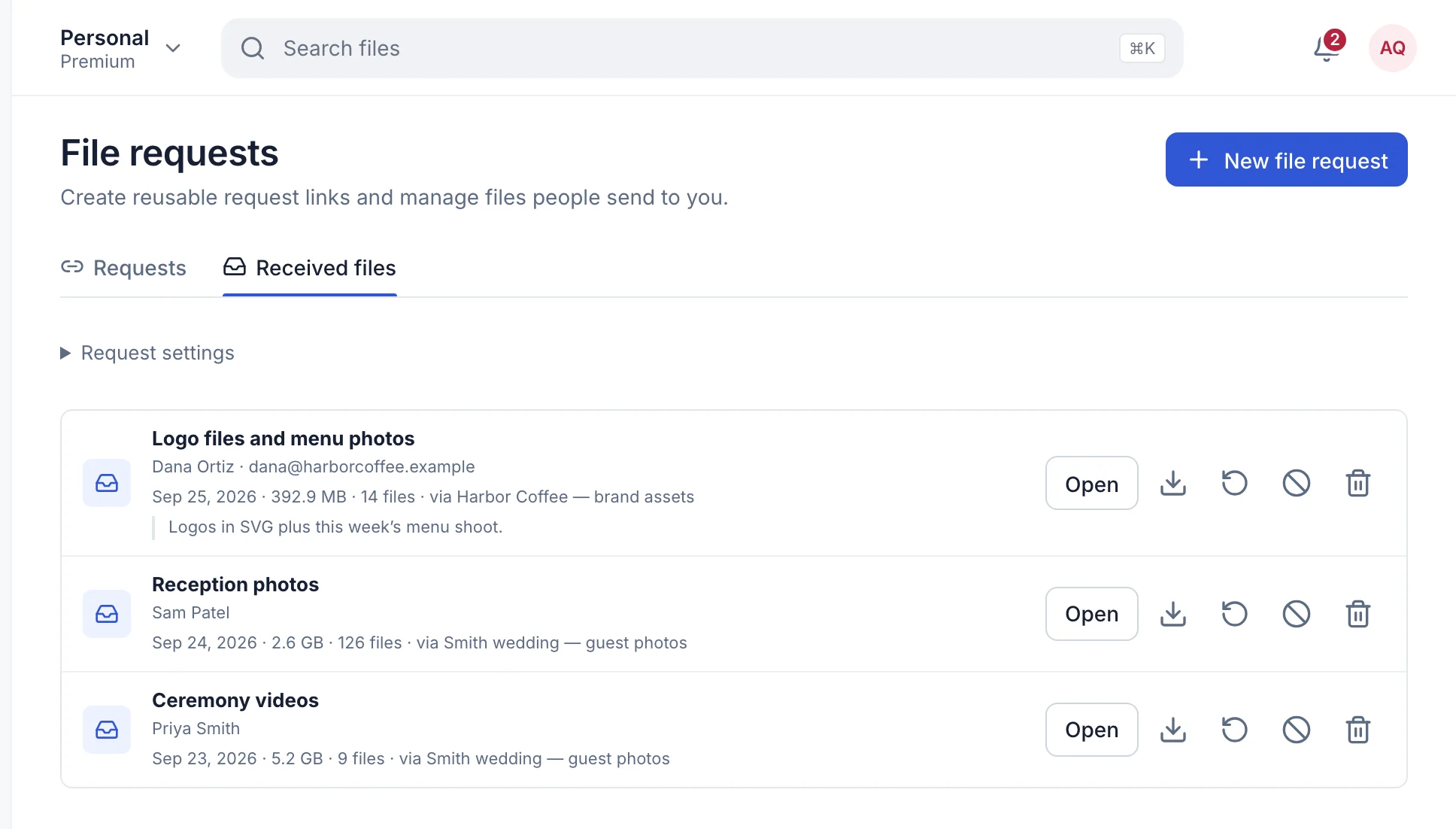
Uploads are saved in the folder you chose, with no expiry. They also appear under File requests → Received files with the sender’s name, their email if you asked for it, the date, the size and any message they left.
From there you can open or download them, move them into Files, or send them to Trash. If someone keeps sending things you don’t want, Block sender stops them using that link.
What people use it for
- Client onboarding. One link in your welcome email for logos, fonts and brand guides.
- Podcasts and music. Guests and collaborators upload raw recordings at full quality.
- Photo and video collection. Second shooters and assistants drop their cards’ contents into your project folder.
- Submissions. Portfolios, entries or documents, each labelled with the sender’s name.
What it doesn’t do
- Expire on its own. A request stays open until you pause or delete it.
- Continue after the page is closed. Uploads reconnect by themselves after a dropped connection, but someone who closes the page has to start again.
- Take unlimited uploads from one connection. To stop spam, one internet connection can send up to 20 uploads an hour to the same link.
- Work on Free. File requests need an active Premium or Family plan. If your plan ends, the link stops accepting uploads.
Which plans have it
- Premium ($9.99/month) and Family ($29.99/month).
- People uploading to you never need an account or a plan.
Questions
A client says they can’t upload
Check the request shows Active, not Paused, and that they aren’t adding more files than its Maximum files.
Do uploaders need to install anything?
No. It works in any modern browser, on a phone or a computer.
Can I have more than one request?
Yes. Make one per client or project, so every upload lands in the right folder.
Updated September 26, 2026