Skip to content
TransferSize

Guide

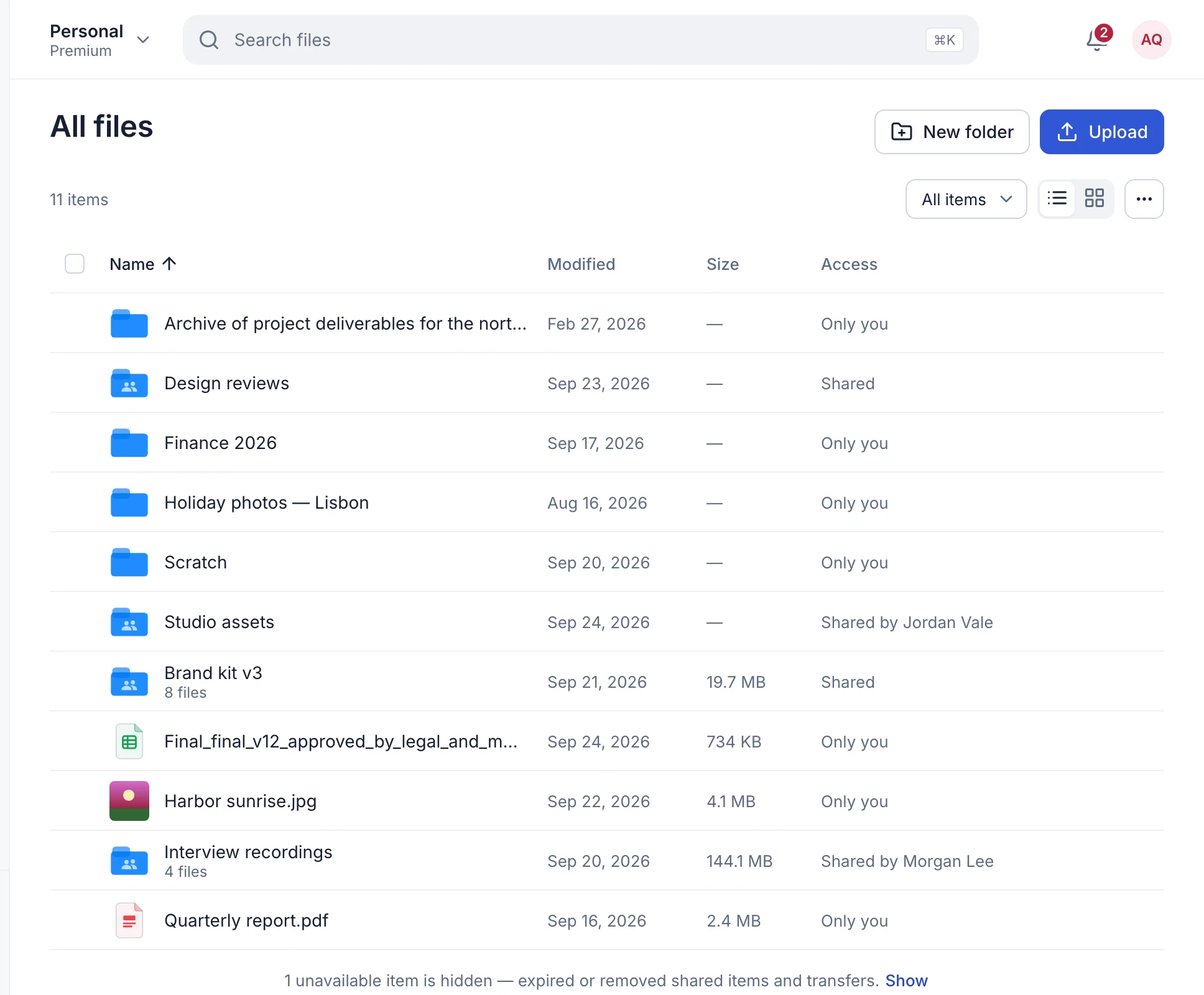
Find and organize your files

Your workspace should save you from searching old messages for “that link from last week.” Use Files for stored work, Sent links for deliveries, and File requests for submissions. Name things so you will recognize them a month from now.

5 steps · Signed-in workspace · Updated 2026-09-10

Where to startWorkspace → Files, Sent links, or File requests
Different kinds of work belong in distinct, easy-to-find areas.

At a glance

See how the task fits together

Steps

Follow these steps

  1. 01

    Open My Files

    Sign in and choose Files from the workspace navigation. Check you are in the intended personal or company context before managing a project.

  2. 02

    Choose a simple folder plan

    Create folders through the available folder controls. Start with a client, event, or year instead of making a complicated hierarchy before you need it.

  3. 03

    Name the files clearly

    Use the rename and move actions available for the item. Keep file extensions intact and make the version or date easy to distinguish.

  4. 04

    Look in the area matching the job

    For a delivery link, check Sent links. For client submissions, check File requests. Use workspace search and filters where available to narrow the list.

  5. 05

    Review before sharing or deleting

    Open the intended files, inspect the public delivery, and confirm the selection before changing access or removing content. Keep a source copy of important work.

Before someone else opens your delivery

Give the transfer a clear title and include only the intended files. Internal folder organization does not excuse a confusing public package.

Keep this in mind

Know what happens next

A folder structure that survives the project

For a family event, use a main folder such as “2026 birthday” with “Original photos” and “Edited video” inside. For client work, separate “Client inputs,” “Working files,” and “Final delivery.” The names explain the job without needing the person who created them to stand nearby.

Final-final-v7 is a warning sign

Use a meaningful date or version: “Kitchen-plan-2026-09-10.pdf” is easier to distinguish than “new-final.pdf.” Tell recipients which version replaces the last delivery. Changing the file on your computer does not automatically update every copy or old transfer you sent.

Stored work and delivery records have different views

Files (your My Files library) helps with the library you keep. Sent links helps you find what you sent and its access settings. File requests organizes incoming submissions. The same project can involve all three, but each view answers a different question.

Find first, then clean up

Before deleting an apparent duplicate, compare its name, size, date, and actual content. Similar names may describe different edits. An old public share can be closed separately from deciding what should remain in your private library.

Company access deserves a moment of attention

A business workspace may have managed members and roles. Confirm who should have access before moving or sharing project material. A shared company context is not the same as an anonymous download link sent outside the team.

Questions

Questions people ask

Will renaming a file on my laptop rename the uploaded copy?

No. The uploaded copy has its own stored name. Use the available workspace controls to manage it.

Why can I see a delivery but not edit every setting?

Your role, ownership, and the item’s state can affect available controls. Check the account and workspace you are using.

Should I keep drafts and final files together?

You can, but separate folders and clear version names make accidental sharing much less likely.

Your next step

Start with one project and names you will understand later.

Open your library