At a glance
See how the task fits together
| Situation | Next step |
|---|---|
| Files are available | Check the sender and delivery, then download. |
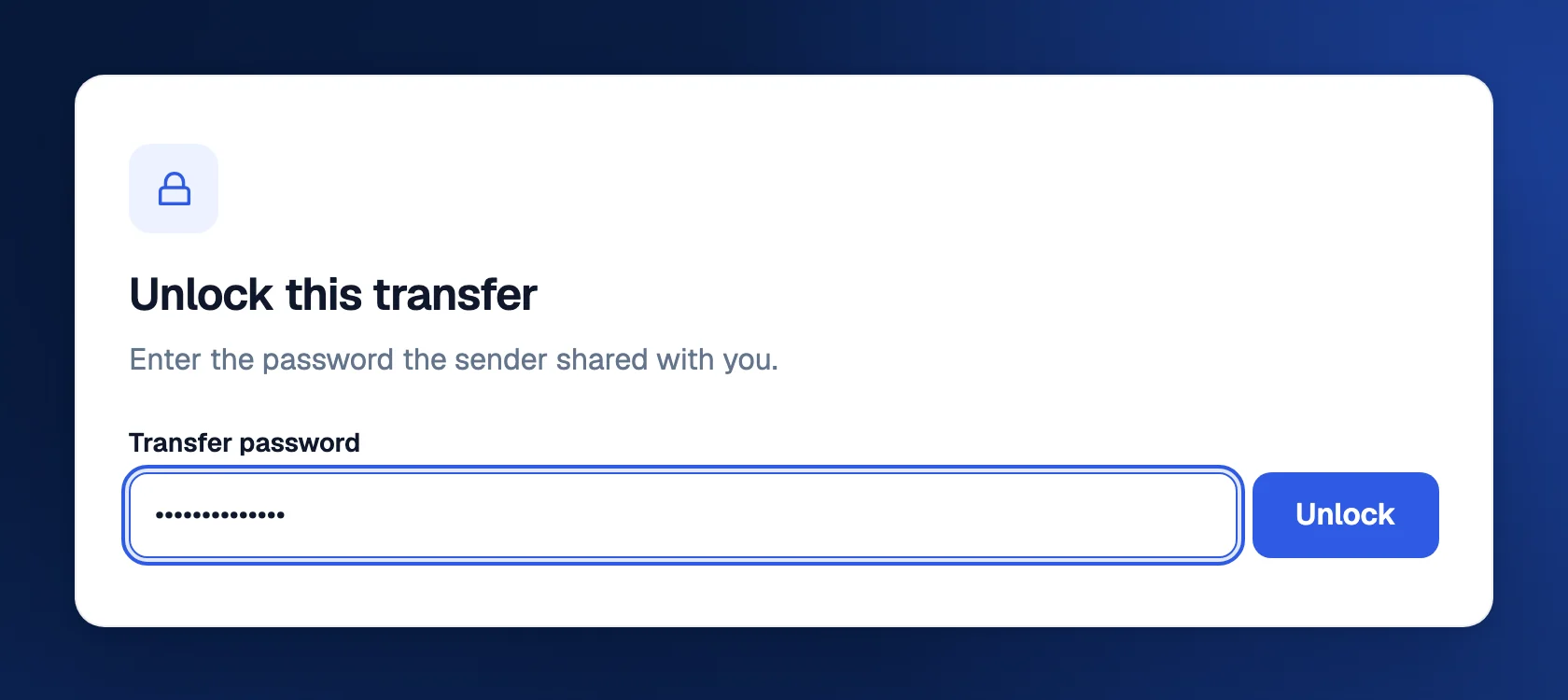
| Password requested | Ask the sender for the transfer password. |
| Payment required | Review the offer before checkout. |
| Expired or unavailable | Ask the sender to check the link or send a new delivery. |
Follow these steps
- 01
Check who sent it
If the message is unexpected, ask the sender through a conversation you already trust. Make sure you recognize the transfer and are opening the expected TransferSize address.
- 02
Open the complete link
Tap or click the link in a browser. If copying it, include the whole address. A cut-off link may open an error instead of the transfer.
- 03
Read the transfer details
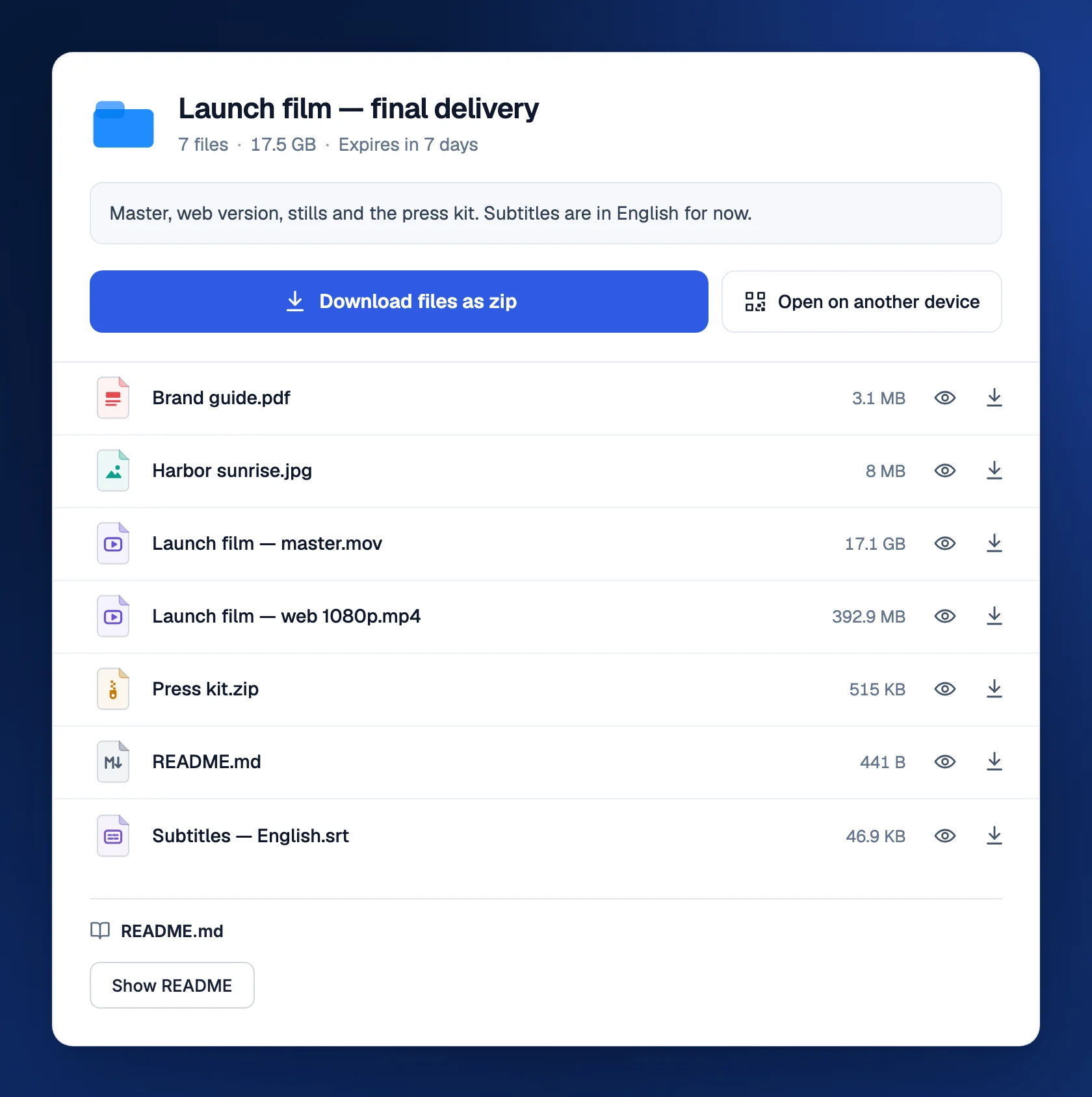
Check the title, filenames, total size, and available access information. Enter the transfer password if one was set. Ask the sender for it separately.
- 04
Choose what to download
Use the download controls for the files you need. If a Download all or ZIP option is available, it packages the selection; you may need to extract it afterward.
- 05
Find and open the saved copy
Look in the browser’s Downloads list or your device’s Downloads folder. Open the actual saved file in a suitable app and tell the sender if something is missing.
A short “Downloaded and opened the correct files, thank you” is more useful than an assumption that a clicked link means a completed handoff.
Keep this in mind
Know what happens next
Previewing is not the same as saving
Playing a video or looking at a document on the transfer page does not necessarily leave a complete copy on your device. Use Download if you want to keep it. A file visible in a browser tab may disappear from reach when the link expires.
Where did the download go?
On a computer, check the browser’s download button and the Downloads folder in Finder or File Explorer. On a phone, check the browser’s downloads and the Files app; the exact location depends on the device and settings. You do not need to download repeatedly just because a photo did not appear in your camera roll.
Give a large download enough space
A large video needs enough free storage on your device. A ZIP can need space for both the downloaded archive and its extracted contents. Keep the network connected and watch the browser’s download status. A partial file is not a finished delivery.
Password, expiry, and payment are different gates
A password must come from the sender. An expired or deleted transfer needs the sender’s help. A paid transfer shows an offer and requires confirmed payment before access. Do not enter your email account password into a transfer-password prompt, and do not pay again just because a first payment is still pending.
If the file will not open
Check that the browser reports a completed download and that the size is plausible. An archive may need extracting; a video may need a compatible codec or player; a design project may need its original application and linked assets. Send the exact error to the sender instead of only saying “it does not work.”
Stay sensible with unexpected files
A preview or familiar filename does not establish that a file is trustworthy. Be especially cautious with installers and scripts from people you do not know. Confirm the source and use the security protections appropriate for your device.
Questions people ask
Do I need to register?
A normal valid public transfer can be downloaded without registration. Its password, expiry, payment, and other access rules still apply.
Can TransferSize recover an expired file for me?
Start by contacting the sender. They may have an original or a stored copy, but an expired temporary delivery is not guaranteed to be recoverable.
Can I send the link to somebody else?
Check with the sender first. The link may grant access to the files and may have limited availability or downloads.
Want to send something back? Learn the basic send-and-download flow.