
Connect and sell
Connect Claude or ChatGPT
Add one server address to your assistant, sign in, and ask about your files.
- About 2 minutes
- Every plan
- Read-only
Steps
- In your workspace, open Account → Security.
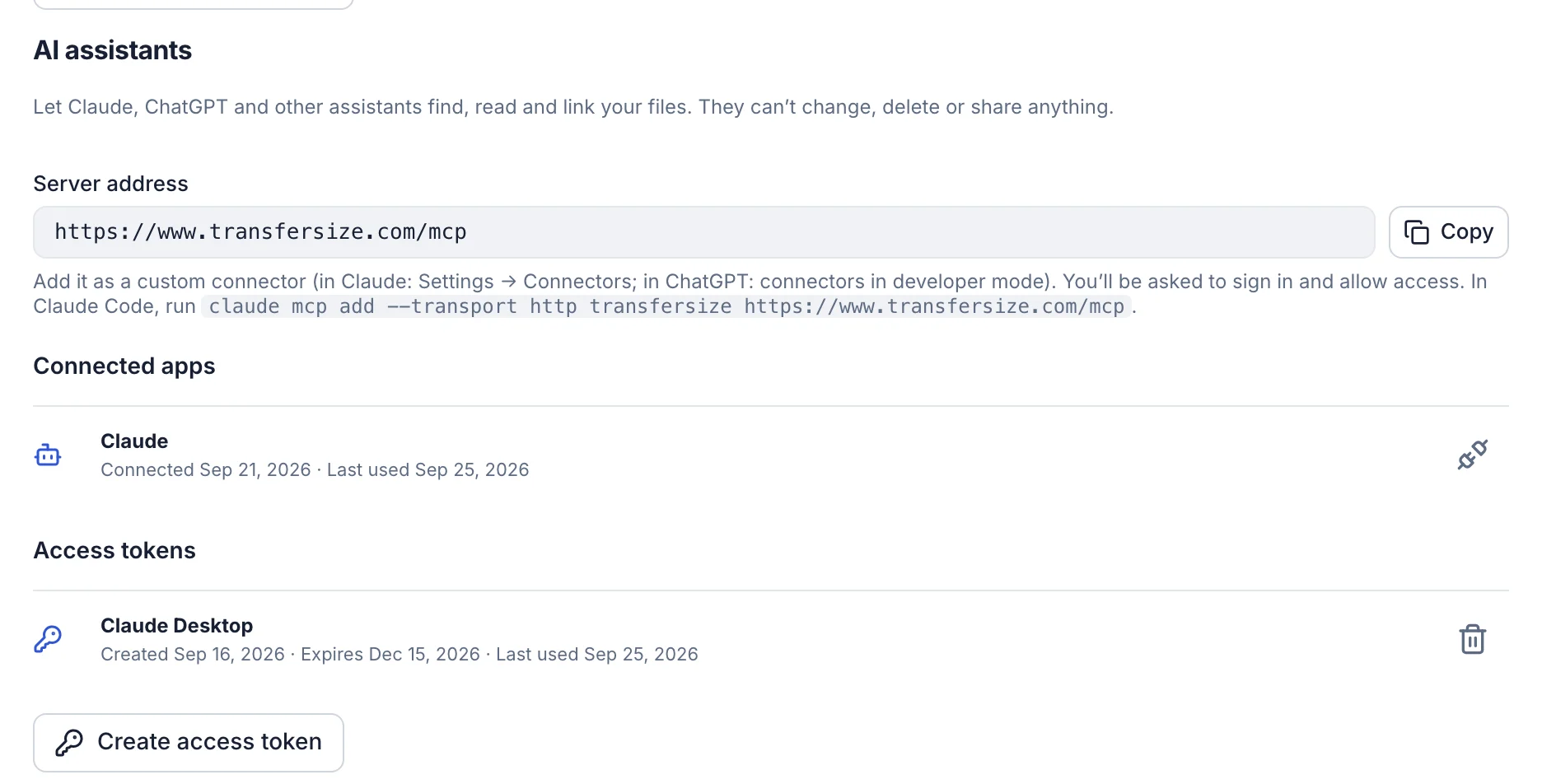
- Under AI assistants, copy the Server address.
- Add it to your assistant as a custom connector (below).
- Sign in to TransferSize when asked, then select Allow.
- Ask about your files, like “find the invoices from June”.
Where to add it
Claude
Open Settings → Connectors, add a custom connector and paste https://www.transfersize.com/mcp.
ChatGPT
Turn on developer mode in ChatGPT’s connector settings and add a connector with https://www.transfersize.com/mcp.
Claude Code
Run claude mcp add --transport http transfersize https://www.transfersize.com/mcp.
Config file
Select Create access token under AI assistants, then copy the configuration it shows into your app.
Troubleshooting
How do I disconnect it?
Under Connected apps, select Disconnect next to it. It loses access straight away.
The assistant asks me to connect again
Connected apps that go unused for 60 days have to be allowed again. Sign in and select Allow.
Updated October 9, 2026