At a glance
See how the task fits together
| Item state | What to do |
|---|---|
| Recoverable | Use the available restore action and confirm the result. |
| Not listed | Check the account, workspace and original location. |
| Recovery no longer available | Look for an independent backup or ask the sender for a copy. |
Follow these steps
- 01
Open the correct account
Sign in with the account that owned the transfer. If you use company tools, check the relevant workspace context as well.
- 02
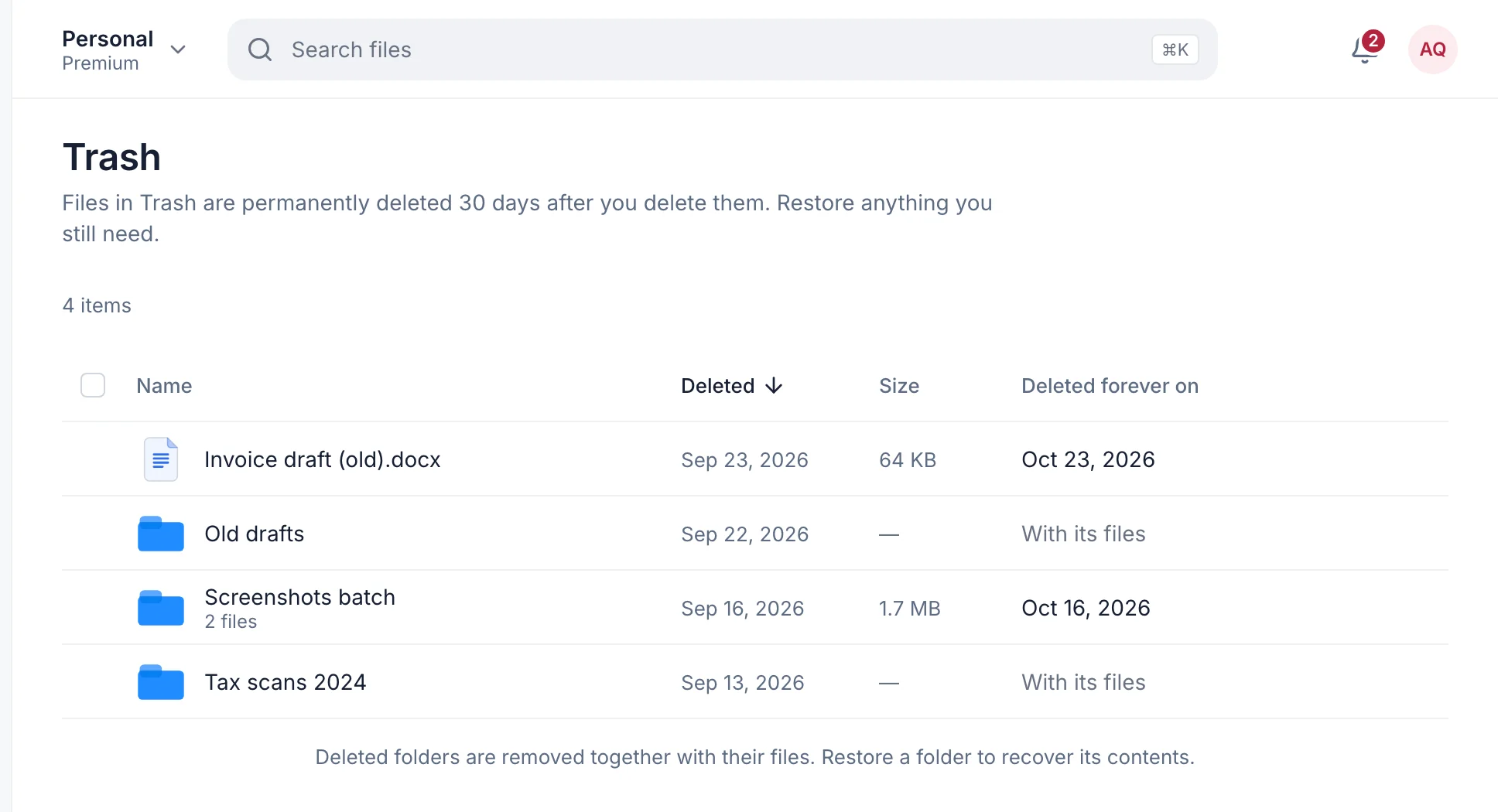
Go to Trash
Open Trash from the workspace navigation. Review the names carefully instead of assuming the first similar item is the one you need.
- 03
Check whether the item is listed
Use the page controls to inspect the available results. An empty list may mean a different account, a different item state, or that the recovery opportunity has ended.
- 04
Use Restore for the intended item
Choose the Restore action when available. Do not choose Delete permanently: that action is a separate final removal, not a way to refresh the item.
- 05
Verify the result
Find the restored record, open the files, and review its share and expiry settings. Confirm the public link works before telling a recipient to use it again.
Check that the files are accessible and the intended share rules are in place. A restored record still deserves a download check.
Keep this in mind
Know what happens next
Recovery is a window, not a promise forever
TransferSize provides recovery periods according to the plan and item state. Check the current plan and the record while the opportunity is still available. A recovery period ending or permanent deletion may leave nothing that the Restore action can bring back.
An expired link is a different problem
A recipient saying “the link expired” does not necessarily mean you deleted a stored file. Check the original transfer and your persistent library before looking only in Trash. You may need a new delivery from an owner copy that still exists.
Do not make the situation harder to understand
Avoid repeated delete-and-restore actions or changing several related transfers at once. Work on the specific record, check the result, and keep any original copy on your device safe. If the interface shows an error, save the wording before retrying.
If the transfer is not there
Check another page of Trash, confirm the owning account, and look for the file in My Files and your local backups. Contact support with the transfer title, approximate deletion time, and a safe reference if you have one. Do not assume support can recover content after permanent removal.
Build a less stressful next delivery
Keep irreplaceable originals independently, and distinguish closing a public link from removing stored content. Before bulk cleanup, finish the client handoff and check which project copies are meant to remain.
Questions people ask
Will a higher plan recover something already permanently deleted?
Do not rely on that. A new allowance cannot be assumed to recreate content that no longer exists.
Should I press Delete permanently to clear an error?
No. Permanent deletion is destructive. Use the visible Restore action for a recoverable item and investigate an error without deleting it again.
Can a download recipient restore my transfer?
The owner manages the stored transfer. The recipient should ask the sender for a new valid delivery.
Find the intended record and check whether Restore is available.