
Keep and organize
Rename many files at once
Select the files, choose how to rename them, and check the preview. Nothing changes until you confirm.
- Every plan
- Preview first
- Regular expressions
Steps
- In your workspace, open the folder in Files.
- Select the files you want to rename. Shift-click selects a range.
- Select Rename in the bar at the top.
- Choose Find and replace, Add text or Number, and fill in the fields.
- Check the Preview, then select Rename.
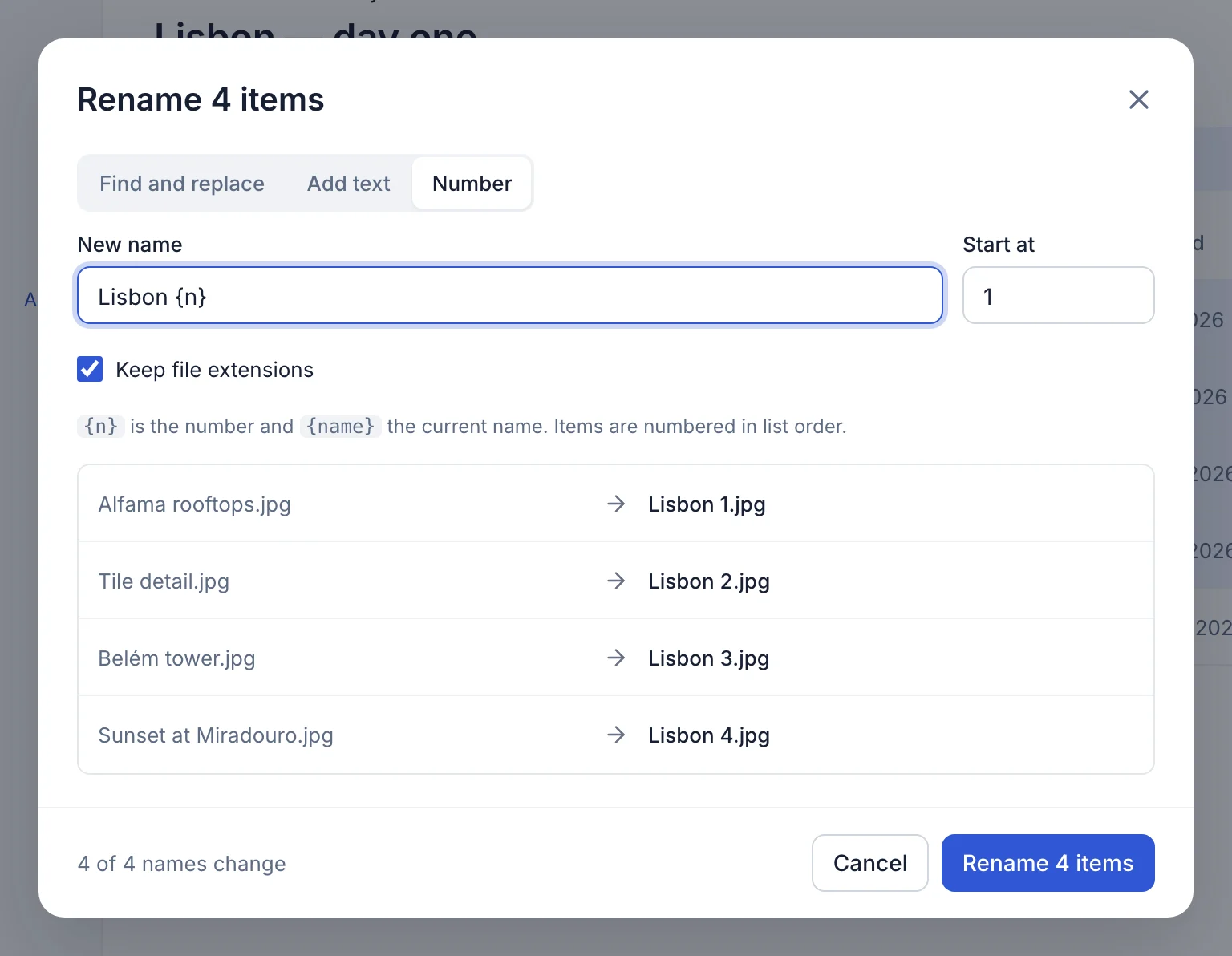
Three ways to rename
- Find and replace
- Change or remove the same text in every name. Turn on Regular expression for patterns, and use
$1,$2to reuse what each group matched. - Add text
- Put text before or after each name, like a client name or a date.
- Number
- Name files in order with a pattern like
Lisbon {n}, starting at any number.{name}keeps each current name, and numbers get leading zeros so they sort in order.
Troubleshooting
Some names are marked in red
Another file in the folder already has that name, or the new name is empty. Change the pattern until the marks go.
Can I undo a rename?
Rename again with the opposite change. Files keep their content, links and sharing whatever their names.
Updated October 9, 2026