
Store and organize
AI assistants
Ask your assistant for “the signed contract from March” and it finds it, reads it and gives you a link. It can look, but it can’t touch.
- Every plan
- Read-only
- Disconnect any time
What it is
TransferSize speaks MCP, the Model Context Protocol: the standard way AI assistants connect to the apps you use. Add TransferSize as a connector once, and your assistant can work with your files in any conversation.
It sees what you see in your workspace: your folders, your transfers, and the folders and transfers people have shared with you. It can’t rename, move, delete or share anything, and it never sees your password.
Find
Search by file name, path or transfer name.
Read
Text, code, Markdown, CSV, JSON and subtitles, plus photos.
Link
A private download link that works for 15 minutes.
Read-only
Nothing can be changed, deleted or shared.
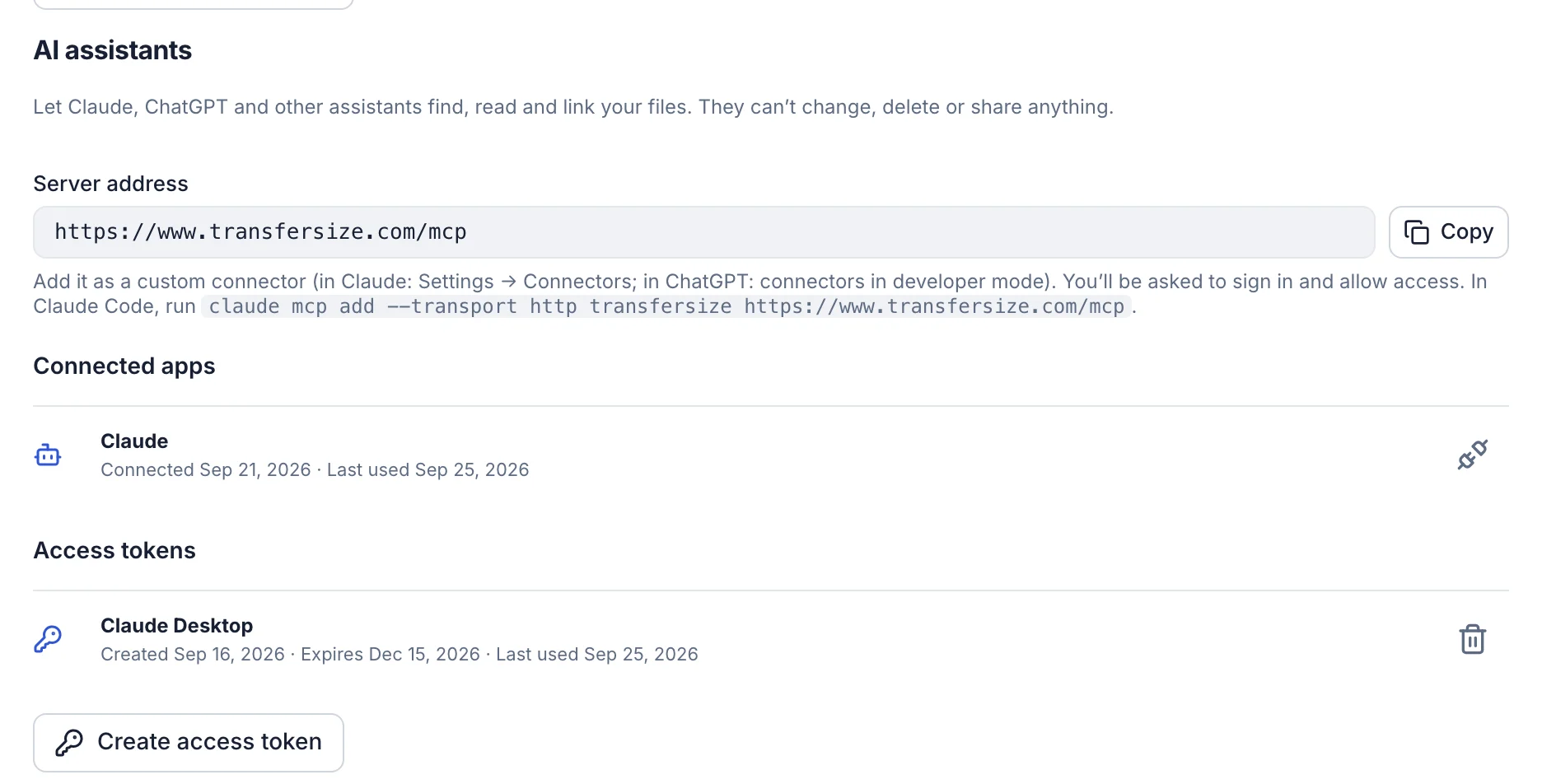
Connect your assistant
Your server address is https://www.transfersize.com/mcp. It’s also on Account → Security under AI assistants, with a copy button.
Claude
Open Settings → Connectors, add a custom connector and paste the server address. Sign in to TransferSize when asked and select Allow.
ChatGPT
Turn on developer mode in ChatGPT’s connector settings, add a connector with the server address, then sign in to TransferSize and select Allow.
Claude Code
Run claude mcp add --transport http transfersize https://www.transfersize.com/mcp, then sign in when your browser opens.
Other apps
Apps that take a JSON configuration file can use an access token instead. Select Create access token under AI assistants, pick how long it lasts, and copy the configuration shown.
Things to ask
- “Find the invoices from June and add up the totals.” It searches by name, reads the files it can and does the sum.
- “What’s in the Harbor Coffee brand kit?” It lists the folder and describes what it finds.
- “Summarize the README in the launch transfer.” Text files and Markdown are read page by page.
- “Give me a link to the final cut.” You get a private download link that stops working after 15 minutes.
You stay in control
Every app you connect is listed under Connected apps, with when it last used your files. Select Disconnect and it loses access straight away. Access tokens work the same way: each has a name and an expiry of 30 days, 90 days, 1 year or never, and you can revoke it any time.
Connected apps hold a key that lasts an hour and renews itself while you keep using them. An app that goes unused for 60 days has to be allowed again.
What it doesn’t do
- Change your files. It can’t upload, rename, move, delete or share anything.
- Read every kind of file. Video, audio, Office and zip files are listed with their details, not read.
- Give out lasting links. Download links expire after 15 minutes and are made for you, not for sharing.
- Upload your workspace anywhere. Your assistant only receives what it reads, when it reads it.
Which plans have it
- Every plan, including Free.
- Needs a verified email address.
- Works with any assistant that supports MCP connectors, including Claude, ChatGPT and Claude Code.
Questions
Can it see files people shared with me?
Yes, the shared folders and transfers you can open in your workspace. Owners’ hidden-file rules still apply.
Where do my files go?
Only to the assistant you connected, and only the files it reads in your conversation. What happens next is up to that assistant’s own privacy terms.
How do I disconnect an assistant?
Open Account → Security, find it under Connected apps and select Disconnect.
Updated October 9, 2026