At a glance
A family video, without the blurry copy
- Choose the filesCheck the selected items.
- Upload and verifyKeep the session open.
- Share the finished linkConfirm the recipient can open it.
You have a 4 GB birthday video on your laptop. Upload that original, call the transfer “Dad’s birthday video,” and send the finished link to your family. They can download the full file; you do not need to squeeze it into a messaging app first.
Follow these steps
- 01
Decide what should happen next
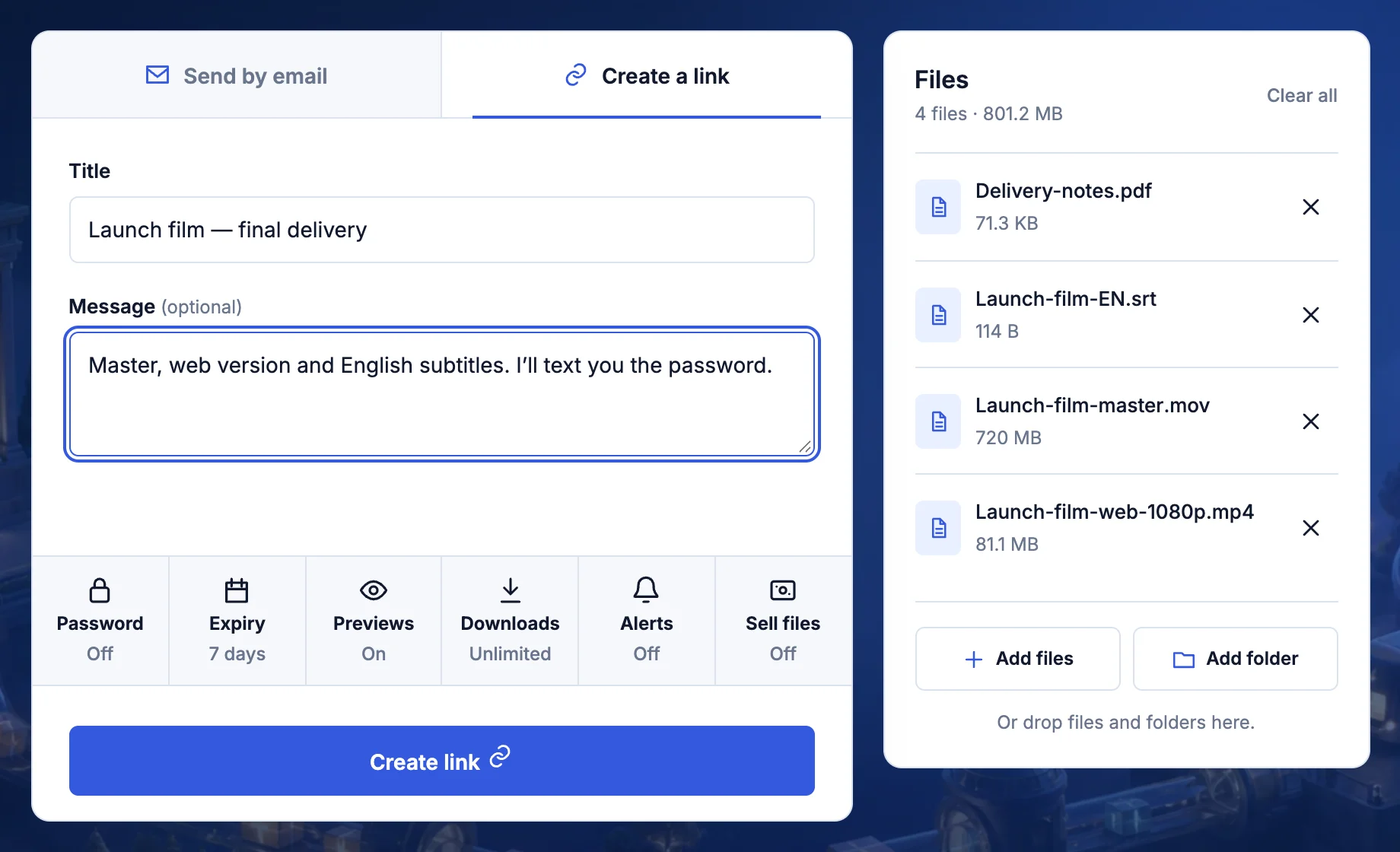
Choose a link when you want to share it yourself, or email delivery when TransferSize should notify named recipients.
- 02
Prepare one clear package
Remove old versions, use names the recipient will understand, and choose a folder when its layout matters.
- 03
Choose the files
Open TransferSize, select Choose files or Choose a folder, check the list, and select Continue.
- 04
Set the delivery rules
Add a title, message, password, expiry date, preview, or download limit only when the job needs it.
- 05
Finish and verify
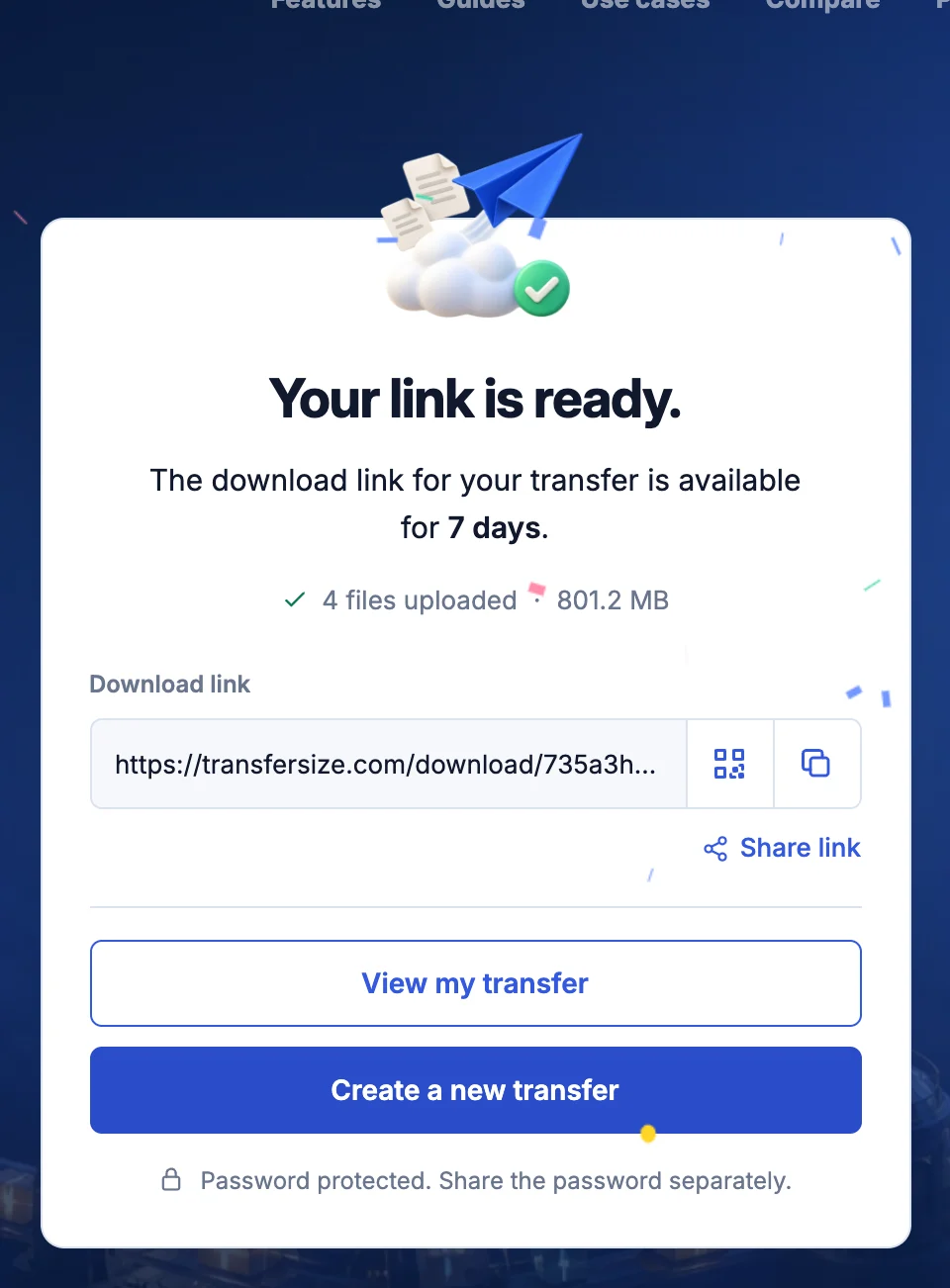
Keep the page open until Transfer ready appears, then open the completed link in a private window before sharing it.
The recipient opens the transfer link in a browser, enters the password if one was set, previews supported files when enabled, and downloads without creating an account.
Keep this in mind
Know what happens next
What actually moves where?
Uploading means copying a file from your device to TransferSize over the internet. Downloading is the other direction: the recipient saves a copy onto their device. The link is simply the address of the download page. It is small enough to put in a normal email, even when the file itself is enormous.
A file, a folder, or a ZIP?
Choose files for a few separate items. Choose a folder when the arrangement matters, such as a project with Photos, Fonts, and Final exports inside it. A ZIP is a single package containing several files and folders. You can create one on your device first if you want a familiar package, but compressing a ZIP does not guarantee that photos or videos will become smaller.
Pick the delivery method that feels natural
Create a link lets you decide where to paste it: your email, a family chat, or a project message. Send by email asks TransferSize to notify the addresses you enter. Both lead to a browser download page. Neither shares your whole workspace with the recipient.
Choose only the controls you need
For public event photos, a sensible expiry may be enough. For a private contract, add a password and send that password separately. Enable previews if a quick look will help the recipient identify the right file. A download limit needs enough room for your intended audience and possible retries.
Wait for the link, then check it
A progress bar reaching the end is not the same as a finished transfer: the service may still be confirming the uploaded files. Wait for Transfer ready and the finished link. Open that link in a private browser window, check the filenames, and try a small download. Your signed-in workspace is not the view your recipient gets.
Keep your original
Sending creates another copy; it does not move the only copy off your computer. Leave the source file where it is until the recipient confirms it opens. A temporary transfer has an expiry and should not be your only backup. For files you want to keep in your account, read the My Files guide.
Want the technical detail?
The free maximum is 50 GB per file. Storage allowance, per-file limit, link availability, and transfer totals are different limits; check the values shown for the selected workflow. Upload time is set by your upload connection and the service path, not just your internet plan’s advertised download speed.
Questions people ask
How large can a free file be?
A free temporary transfer can contain one file up to 50 GB and can stay available for up to seven days.
Does the recipient need an account?
No. A valid public transfer can be downloaded without registration.
Can I close the browser during upload?
No. Keep the tab open and the device awake until Transfer ready appears.
Choose your files and follow the steps above.