Skip to content
TransferSize

Guide

Connect TransferSize with WebDAV

WebDAV lets a compatible file app open a window into your TransferSize library. You can browse folders and download files without doing everything in a browser. The current connection is read-only, so the app cannot reorganize or erase your library.

6 steps · Verified paid account · Updated 2026-09-10

Where to startWorkspace → Account security → WebDAV credentials
A compatible file app reading a TransferSize library through a separate connection.

At a glance

Use the file app you already know

Connect a compatible file app
SettingWhat to use
ServerThe server address shown in your account
UsernameYour exact TransferSize account email
PasswordA dedicated WebDAV app password
OperationsBrowse and download; no uploads, edits or deletes

You keep a project archive in TransferSize and want to browse it from a compatible file app on your laptop. Add the server address, your account email, and a separate app password. The files appear through that connection; downloading one makes a local copy.

Steps

Follow these steps

  1. 01

    Open Security & apps

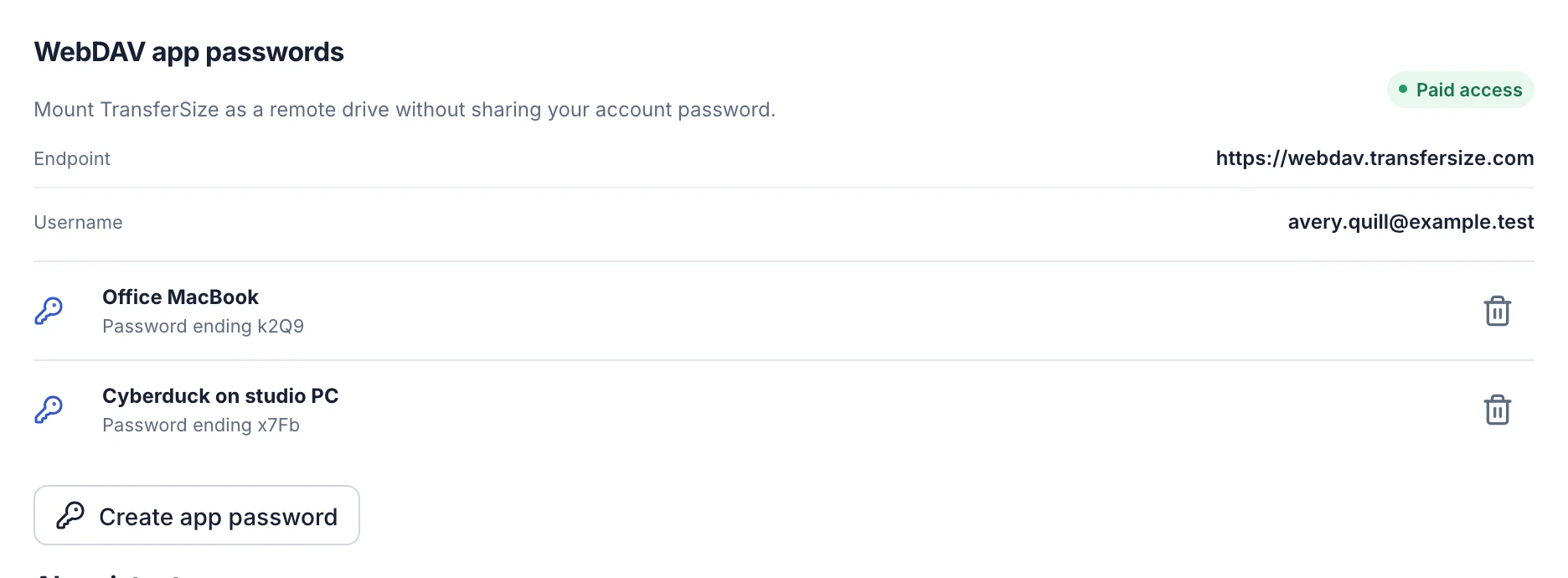
    Sign in, open Account settings, choose Security & apps, and find WebDAV app passwords.

  2. 02

    Copy the connection details

    The page shows the HTTPS endpoint and the exact account email to use as the username.

  3. 03

    Create an app password

    Give the connection a useful name such as Office Mac or Laptop, then create it. The password is shown only once.

  4. 04

    Add the WebDAV connection

    In your file app, use the displayed endpoint as Server, your displayed email as Username, and the new app password as Password.

  5. 05

    Test the mount

    Connect, open a folder, and download a small file. Confirm that it opens before depending on the connection for a larger delivery.

  6. 06

    Store or revoke the password

    Let the app save the password in its secure credential store. Revoke that named connection from Security & apps when the device is lost or no longer used.

What the connected app sees

The app can list and download files from your TransferSize account. It cannot upload, move, rename, or delete them.

Keep this in mind

Know what happens next

The three fields must match

Use the complete endpoint shown in your account, normally https://webdav.transfersize.com. The username is your TransferSize account email, not the connection label. The password is the one-time WebDAV app password, not your normal account password.

The connection is deliberately read-only

The app can list folders and download files with GET, HEAD, and PROPFIND requests. Upload, rename, move, copy, create-folder, and delete requests are blocked, so a connected app cannot reorganize your library.

A connection name is only for you

Labels such as Office Mac or Archive laptop help you recognize credentials later. They are not usernames and are not sent instead of your account email.

Fix an authentication error

Re-enter the endpoint without adding an extra folder, check the full email address, and make sure you used the app password exactly as shown. If the password was lost or revoked, create a new one; the old value cannot be displayed again.

Check account eligibility

WebDAV requires a verified account with an active paid plan. If a previously working mount stops, confirm the plan is still active before recreating the connection.

Connected does not mean stored on your laptop

Seeing a filename in a connected app does not necessarily download its contents. An internet connection is still needed unless you explicitly save a local copy. Before travelling, download the files you need and check they open with the network disconnected.

Try one app and one small file first

Check that your chosen app supports HTTPS WebDAV, then test a folder listing and a small download before depending on a large project. Client behavior varies. An app asking to synchronize both ways may not suit a read-only connection; choose browsing or downloading instead.

Want the technical detail?

The supported read operations include listing with PROPFIND and downloading with GET or HEAD. Write operations are blocked. A client that tries to create a folder, upload, lock, move, or rename an item can show a permission error even when the connection details are correct. This is not a two-way synchronization service.

Questions

Questions people ask

Can I use my normal TransferSize password?

No. Create a separate WebDAV app password in Security & apps.

Can a WebDAV app upload or delete files?

No. TransferSize WebDAV is read-only and blocks every write operation.

What is the server address?

Use the endpoint displayed in Security & apps. The normal public endpoint is https://webdav.transfersize.com.

What should I do if I lose the app password?

Create a replacement, update the app, and revoke the old named credential. TransferSize cannot show the original password again.

Why can I connect but not save changes?

That is expected. The connection is for browsing and downloading; use the TransferSize workspace to upload, move, rename, or delete files.

Your next step

Find Security & apps and create a separate password for your file app.

Open account settings