Skip to content
TransferSize

Guide

Add a password to a file transfer

A download link is convenient. A password adds a second thing someone needs before opening the protected transfer. Use it when a link might be forwarded but the files are meant for a smaller audience.

5 steps · No recipient account required · Updated 2026-09-10

Where to startChoose files → Continue → Create a link or Send by email
A download link and its password taking separate paths to a recipient.

At a glance

Share a private set of documents

Swipe across to see every column.

Three controls. Three different jobs.
ControlWhat it changesWhat it does not do
PasswordRequires the transfer password to open protected access.Does not identify a person or encrypt the file end to end.
ExpirySets when access through the link ends.Does not erase a copy already downloaded.
Download limitRestricts successful downloads.Does not create a list of approved people.

Email the transfer link to your accountant, then give them the password in a separate call. If the email is forwarded by mistake, it does not contain both the link and the password. Check their preferred way to receive sensitive records before sending.

Steps

Follow these steps

  1. 01

    Choose the files

    Add the files, select Continue, and choose link or email delivery.

  2. 02

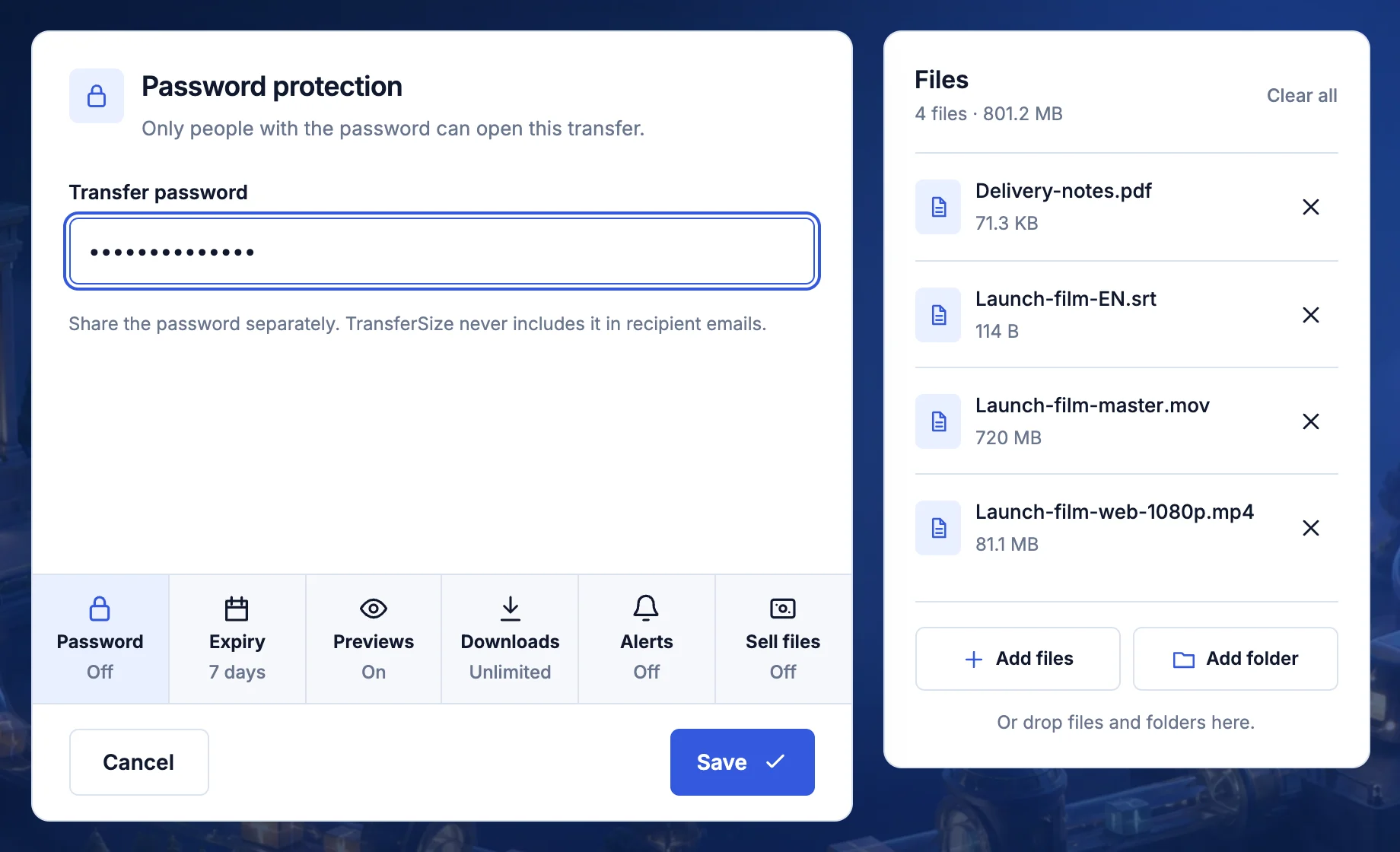
    Open Password

    Turn password protection on and use a long password you have not used elsewhere.

  3. 03

    Choose the expiry

    Give the recipient enough time, but do not leave private files open longer than needed.

  4. 04

    Finish and test

    Wait for the link, then open it in a private window and check that it asks for the password.

  5. 05

    Use two messages

    Send the link in one place and the password in another.

What the recipient sees

The recipient opens the transfer link in a browser, enters the password if one was set, previews supported files when enabled, and downloads without creating an account.

Keep this in mind

Know what happens next

What the password protects

The transfer password is an access check for the download page. It is separate from the password you use to sign in to your TransferSize account. Never give your account password to a recipient. A download password does not grant them access to your file library.

What it does not promise

Password protection is not end-to-end file encryption. It also cannot stop an authorized recipient from saving, forwarding, photographing, or recording material they can access. After a copy is downloaded, changing the link settings cannot erase that copy.

Choose something worth protecting with

Use a long, unique password or passphrase, ideally created and saved by a password manager. Avoid a client’s name, the transfer title, “123456,” or a password you use for another account. Do not put the password in the filename or transfer description.

Send the two pieces separately

Give the recipient the link through the usual project conversation and the password through a different agreed channel. A password beside its link in the same public message offers little protection if that message is exposed. Check the recipient actually knows that a password is required.

Test without your signed-in session

Open the finished public link in a private browser window and confirm that it asks for the password. Check that an incorrect password does not grant access, then try the correct one. This is a check of your own transfer, before anyone depends on it.

If the password is rejected

Check capitalization and accidental spaces when copying it. Make sure you are opening the intended transfer, particularly if the sender created several versions. The sender should review the current settings or provide a replacement delivery. Do not send account credentials as a workaround.

Questions

Questions people ask

Can support recover my password?

No. Keep it in your own password manager.

Is an expiry date enough?

No. Expiry controls time; a password controls who can open the link.

Ready?

Choose your files and follow the steps above.

Choose files