
Your account
Sign in with a passkey
Sign in with your face, fingerprint or device PIN. Passkeys can’t be phished or reused on other sites.
- About 1 minute
- Every plan
- No password to type
Add a passkey
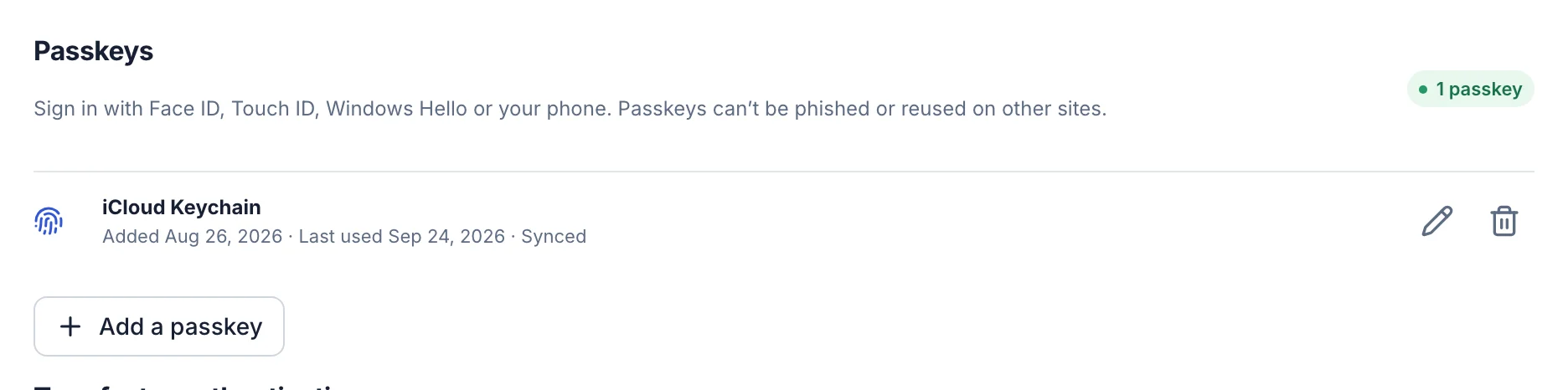
- In your workspace, open Account → Security.
- Under Passkeys, select Add a passkey.
- Follow your device’s prompt: Face ID, Touch ID, Windows Hello or your phone.
Sign in with it
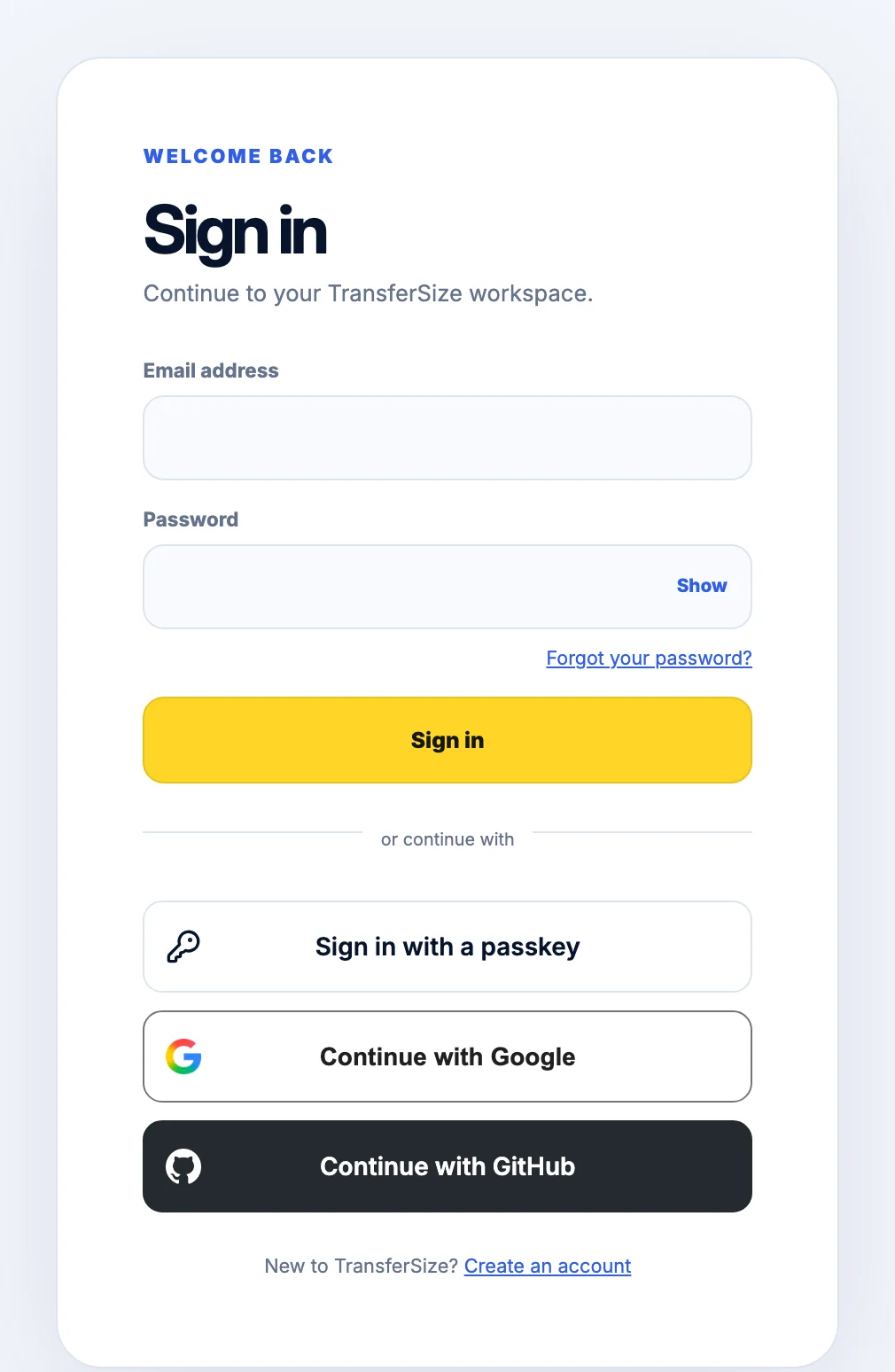
- Go to the TransferSize sign-in page.
- Select Sign in with a passkey and confirm on your device.
Troubleshooting
I lost the device with my passkey
Sign in with your password, then remove the old passkey under Passkeys.
My browser can’t create passkeys
Use a recent version of Safari, Chrome, Edge or Firefox.
Updated October 9, 2026